# Introduction

RaidSharksBot is by far the most advanced Telegram raid bot, designed to elevate X raids and boost community engagement.

It works in Telegram Groups (with and w/o Topics) and also in [Channels](/channel-support).

RaidSharksBot builds a leaderboard based on interactions with a tweet and distributes points to your community accordingly. It is also able to [Airdrop](/airdrops) any EVM compatible token to your raiders. It takes care of all necessary steps as Wallet creation, calculations and processing airdrops according to your rules.

* Smash - 2 Points
* Repost - 3 Points
* Comment - 4 Points

{% hint style="info" %}
Two Points for a "SMASH" are given immediately.\ <mark style="color:red;">However, all other points are distributed approx. 1 min after a raid is finished or ended manually!</mark>
{% endhint %}

Our Technology is <mark style="color:green;">100% free to use,</mark> but it also offers exclusive services as well.\
Like [full customization](/customization), [Boost Raids](/boost), [AI supported comment creation](/finley-ai) and [Advertising](/advertising) for your project.\
\
Furthermore, you can [apply as a professional raider](/become-a-pro-raider) by meeting certain criteria and help projects out there to gain more exposure while earning money.

***

<table data-card-size="large" data-view="cards" data-full-width="false"><thead><tr><th></th><th data-type="users" data-multiple></th><th data-hidden></th><th data-hidden></th><th data-hidden data-card-cover data-type="image">Cover image</th><th data-hidden data-card-target data-type="content-ref"></th></tr></thead><tbody><tr><td><a href="https://t.me/RaidSharksBot?start=bookAd"><strong>Advertise</strong></a> your Project - Starting from $25!</td><td></td><td></td><td></td><td><a href="/files/ztkrjGnHw0j4Ohs4omgD">/files/ztkrjGnHw0j4Ohs4omgD</a></td><td><a href="https://t.me/RaidSharksBot?start=bookAd">https://t.me/RaidSharksBot?start=bookAd</a></td></tr><tr><td><a href="/pages/Gyc9FLBiAxoVC2IF7WOi">Trending</a></td><td></td><td></td><td></td><td><a href="/files/wHlEXc1sCXqV8j5EhWqV">/files/wHlEXc1sCXqV8j5EhWqV</a></td><td><a href="/pages/Gyc9FLBiAxoVC2IF7WOi">/pages/Gyc9FLBiAxoVC2IF7WOi</a></td></tr><tr><td><a href="/pages/3SELbJCvfgVrP8V1eOMo">Boost</a> your Content!</td><td></td><td></td><td></td><td><a href="/files/OdddOLxYA5OZXslx2xj1">/files/OdddOLxYA5OZXslx2xj1</a></td><td><a href="/pages/3SELbJCvfgVrP8V1eOMo">/pages/3SELbJCvfgVrP8V1eOMo</a></td></tr><tr><td><a href="/pages/xMhr4Q9s80UhxNlS6w9T">Customize</a> your Bot!</td><td></td><td></td><td></td><td><a href="/files/lw0wYupTcctc5iUdEldW">/files/lw0wYupTcctc5iUdEldW</a></td><td><a href="/pages/xMhr4Q9s80UhxNlS6w9T#buy-credits-customize-your-bot">/pages/xMhr4Q9s80UhxNlS6w9T#buy-credits-customize-your-bot</a></td></tr><tr><td><a href="https://raidsharksbot.com/sharx-army.html">Become a professional Raider!</a></td><td></td><td></td><td></td><td><a href="/files/lZRV1AZfzgk8lpbAzT1y">/files/lZRV1AZfzgk8lpbAzT1y</a></td><td><a href="https://raidsharksbot.com/sharx-army.html">https://raidsharksbot.com/sharx-army.html</a></td></tr><tr><td><a href="/pages/dFJxo3ZlrJZMPiUANIrD"><strong>Airdop</strong></a> your Raiders!</td><td></td><td></td><td></td><td><a href="/files/8e0y4IEQEQ29Dvh4nQqM">/files/8e0y4IEQEQ29Dvh4nQqM</a></td><td><a href="/pages/dFJxo3ZlrJZMPiUANIrD">/pages/dFJxo3ZlrJZMPiUANIrD</a></td></tr><tr><td><a href="/pages/o7Ef759HoSVXGxMzBsJN">Get fully branded Bot!</a></td><td></td><td></td><td></td><td><a href="/files/MPUw6Ak2Halz4FmmzOCC">/files/MPUw6Ak2Halz4FmmzOCC</a></td><td><a href="https://raidsharksbot.com/white-label.html">https://raidsharksbot.com/white-label.html</a></td></tr><tr><td>Create your own <a href="/pages/VVOyeiTqyLtz78X7wkjY"><strong>Verified Links Page</strong></a><strong>!</strong></td><td></td><td></td><td></td><td><a href="/files/WJnAPqJBJHCg0zra4e1K">/files/WJnAPqJBJHCg0zra4e1K</a></td><td><a href="/pages/VVOyeiTqyLtz78X7wkjY">/pages/VVOyeiTqyLtz78X7wkjY</a></td></tr><tr><td>Finley AI - <a href="/pages/ejK2UI3MAoso0Ic0V0Mx"><strong>Create Comments with AI</strong></a><strong>!</strong></td><td></td><td></td><td></td><td><a href="/files/TkdaA1cl4ty7ho7XJNdG">/files/TkdaA1cl4ty7ho7XJNdG</a></td><td><a href="/pages/ejK2UI3MAoso0Ic0V0Mx">/pages/ejK2UI3MAoso0Ic0V0Mx</a></td></tr><tr><td><strong>Visit</strong> <a href="https://raidsharksbot.com"><strong>RaidSharksBot.com</strong></a><strong>!</strong></td><td></td><td></td><td></td><td><a href="/files/wMLWa7FU0ZVDTP9CHyMI">/files/wMLWa7FU0ZVDTP9CHyMI</a></td><td><a href="https://raidsharksbot.com">https://raidsharksbot.com</a></td></tr><tr><td><strong>Join us on</strong> <a href="https://t.me/RaidSharksEntry"><strong>Telegram</strong></a>!</td><td></td><td></td><td></td><td><a href="/files/G5UzLvnTAV8FbZT5LBBG">/files/G5UzLvnTAV8FbZT5LBBG</a></td><td><a href="https://t.me/RaidSharksEntry">https://t.me/RaidSharksEntry</a></td></tr><tr><td>Invest in <a href="/pages/3ybIZPoW95v7taLWjIzi"><strong>$SHARX</strong></a> Token!</td><td></td><td></td><td></td><td><a href="/files/PJCMbp6Qyqamm6tHsPjS">/files/PJCMbp6Qyqamm6tHsPjS</a></td><td><a href="https://www.dextools.io/app/en/token/sharkx?t=1727089439693">https://www.dextools.io/app/en/token/sharkx?t=1727089439693</a></td></tr><tr><td>Earn <a href="/pages/pNgFDm6SP81Qhgfl0y6K"><strong>Passive Income</strong></a>!</td><td></td><td></td><td></td><td><a href="/files/r0yQEtEfrUMjMaW3AZ3h">/files/r0yQEtEfrUMjMaW3AZ3h</a></td><td><a href="https://app.raidsharksbot.com/revshare">https://app.raidsharksbot.com/revshare</a></td></tr></tbody></table>

***

## What makes RaidSharksBot unique and why does it stand out?&#x20;

**RaidSharksBot** is the most advanced and customizable raid bot available — and it’s 100% free to use.\
**I**t is made to engage your community, not to block or punish. It offers unique features for an interactive experience, including a leaderboard system for competitive environments and flexible settings for customization according to your group´s needs. **RaidSharksBot** builds a leaderboard based on interactions of your community and distributes points for smashes, reposts and comments accordingly.&#x20;

The bot also introduces new business opportunities through [white labeling (customization)](/customization), [advertising on Telegram](/advertising) and [boosting your content](/boost), shifting digital platform utilization towards community and commercial growth.

RaidSharksBot helps you gaining valuable data about your most active Group members and makes you able to reward these members manually or by an [automated airdrop mechanism](/airdrops/faq/airdrop-history). RaidSharksBot works in every group, no matter if it is private or public. It also works with topics enabled.

Furthermore, RaidSharksBot brings a [Trending](/trending) feature not only containing a [Trending Telegram channel](https://t.me/RaidSharksTrending), but also brings mini app support and valuable token and project information to potential investors. Get Trending with RaidSharksBot and let people discover your project with minimum effort directly from within Telegram.\
\
Still searching for a tool to be able to really see who helps your project and drives it forward?

**Add** [**@RaidSharksBot**](https://t.me/raidsharksbot?startgroup=_) **to your group now and follow** [**Quickguide**](/quickguide) **for setup!**

***

## What are the Key Features and Functions?

<details>

<summary>Key Features</summary>

* 📱 [Telegram Mini App](https://t.me/raidsharksbot?profile)
* :rocket: [ Boost Feature](/boost)
* 🏆 [Leaderboard](/leaderboard)
* 🪂 [Airdrops](/airdrops)
* :green\_circle: [Trending](/trending)
* 📊 [Raid](/how-to-raid)
* ⚙️ [Graphical UI](/raid-settings)
* 👥 [Channel ](/channel-support)Support
* ⏩ [Quick Smash](/raid-settings/quick-smash)

</details>

<details>

<summary>Functions</summary>

* 🎯 [Group targets](/raid-settings/main-target-smashes)
* ⚙️ [Save settings](/raid-settings/access-settings-ui)
* 🤝[ Raid Forward](/raid-forward)
* 🔒 [Lock Chat](/raid-settings/chat-mute)
* 🔔 [Raid Notifications](/how-to-raid/live-notifications)
* \#️⃣ [Preset Cash-/Hashtags](/raid-settings/tags)
* 👁 [X Post preview](/raid-settings/finder-feature)
* 🔎 [Find X links](/raid-settings/finder-feature)
* 🔄 [Repost function](/raid-settings/refresh-count)
* 📊 [CSV Export](/leaderboard/leaderboard-export-csv)
* 🚫 [Blacklist Users](/leaderboard/blacklisting-users)
* 👻 [Shadow Ban Detection](/leaderboard/point-distribution#shadow-ban-detection)
* 📁[ ](/api-endpoint)[Endpoint (on request)](/api-endpoint)

</details>

***

## Using Telegram Mini Application Feature

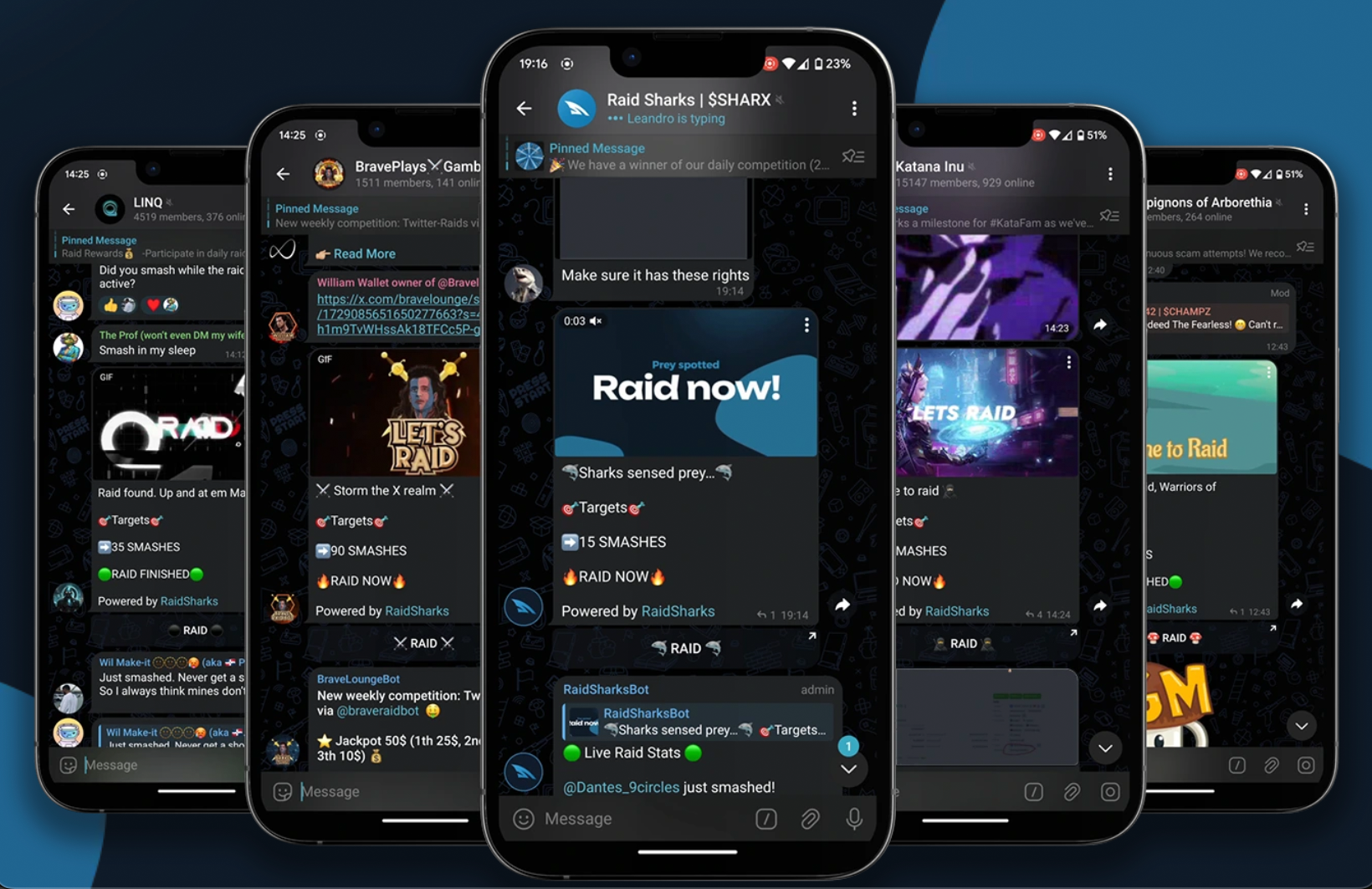
RaidSharksBot uses the innovative Mini Application feature within Telegram. There are only a hand full of apps making use of those great possibilities. That said it is clear that RaidSharksBot´s infrastructure is future proof and the project takes a leading role in the fast paced world of Telegram Bots.

{% tabs %}
{% tab title="Raid Tab" %}

<figure><img src="/files/qkpbgnsur6F4PM2pMVeQ" alt="" width="375"><figcaption></figcaption></figure>
{% endtab %}

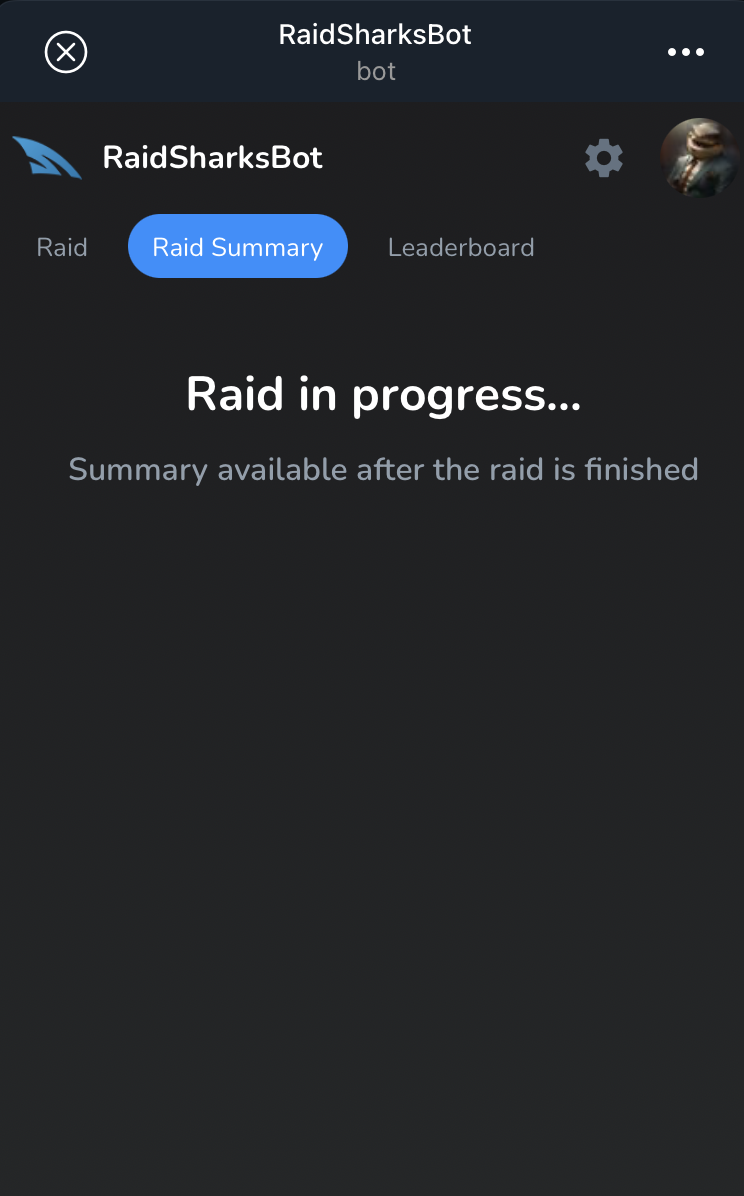
{% tab title="Raid Summary Tab" %}

<figure><img src="/files/dbpn08mj1vPGyOt97EEI" alt="" width="375"><figcaption></figcaption></figure>
{% endtab %}

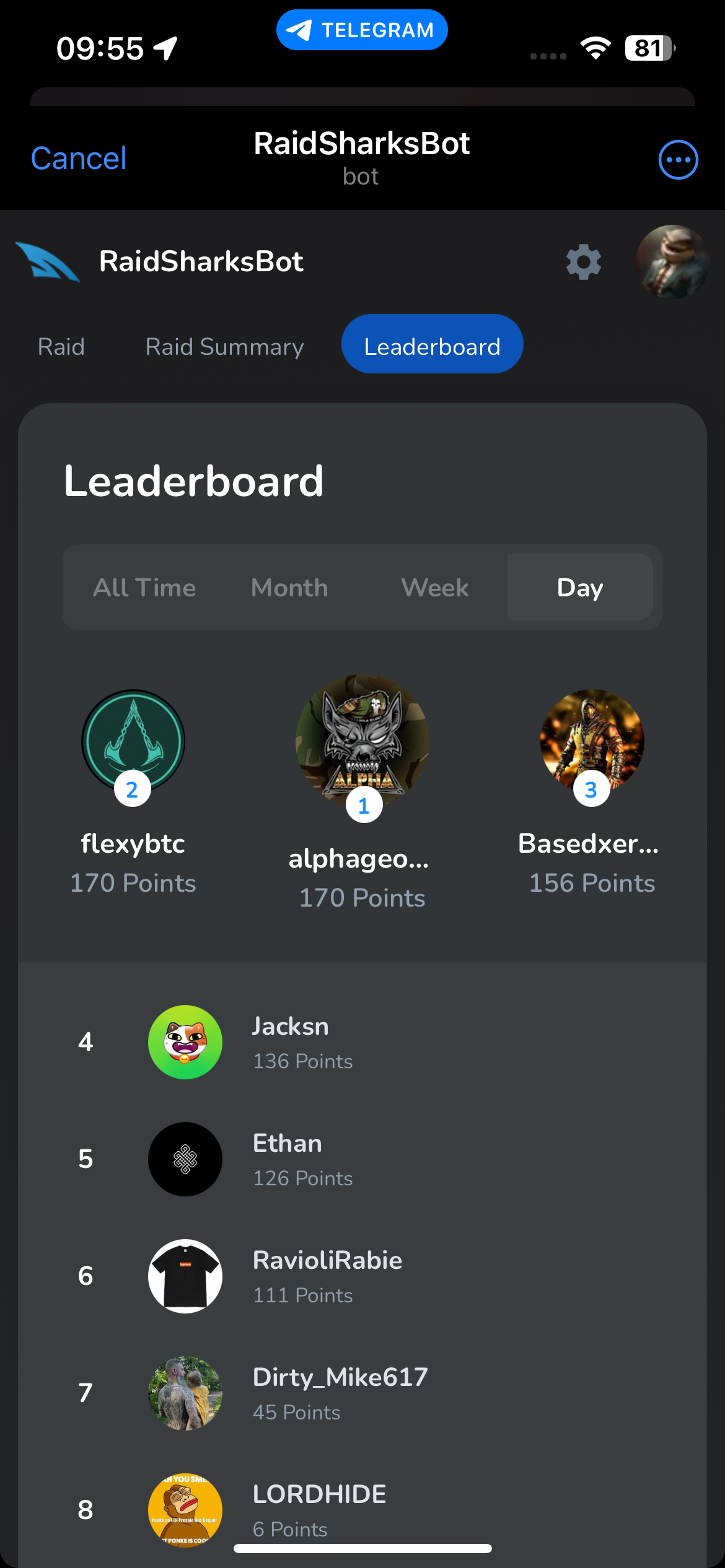
{% tab title="Leaderboard Tab" %}

<figure><img src="/files/NURYqGa4wkeKmGxLjVc0" alt="" width="375"><figcaption></figcaption></figure>
{% endtab %}

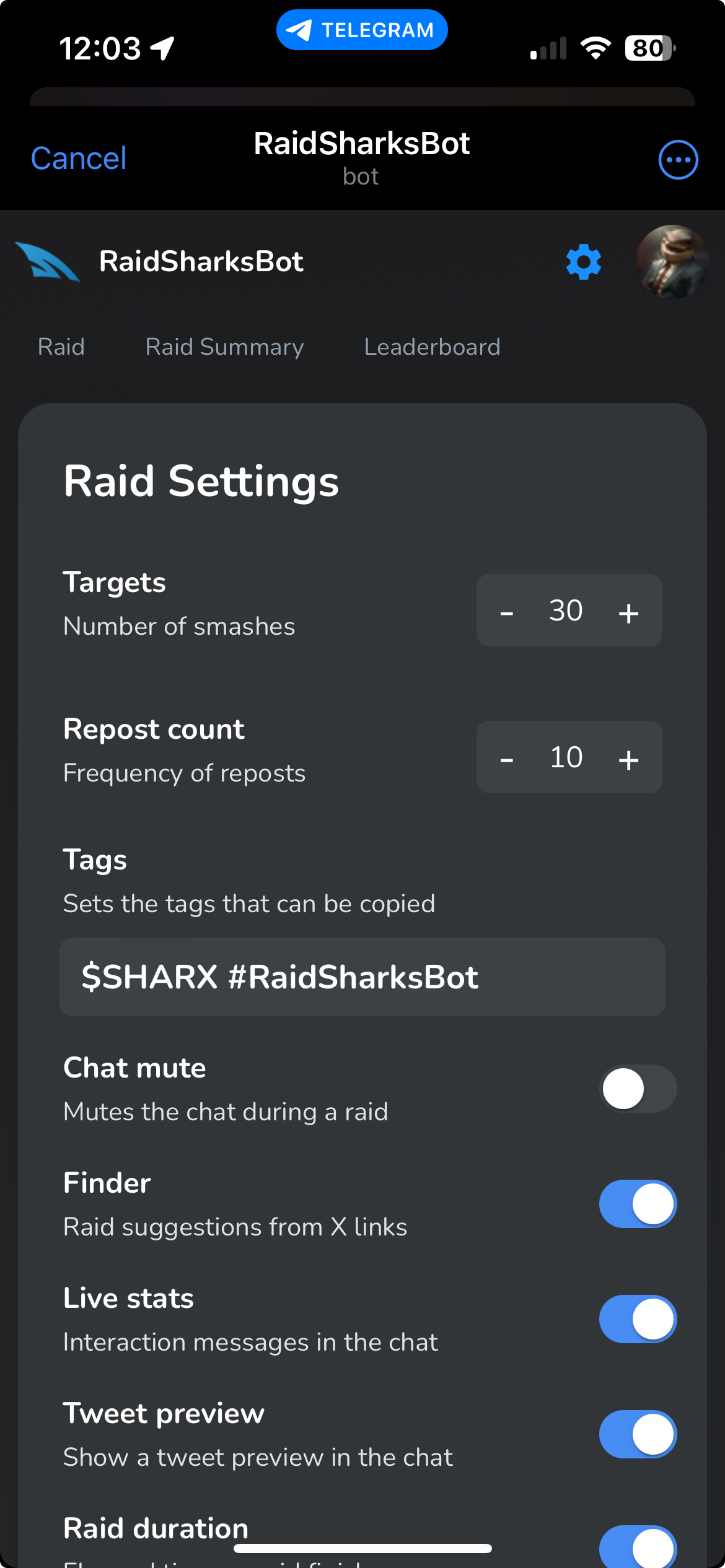
{% tab title="Settings Tab" %}

<figure><img src="/files/644deC0AqIauxZKl1wUo" alt="" width="375"><figcaption></figcaption></figure>
{% endtab %}
{% endtabs %}


# Quickguide

RaidSharksBot is 100% free to use - 🤖 How to use @RaidSharksBot?

## <mark style="color:purple;">**Guide for Admins and Group Owners (Bot Setup):**</mark>

1. [Add @RaidSharksBot ](https://t.me/raidsharksbot?startgroup=_)to your Telegram group 📲.
2. Promote to admin 🔑. Leave Permissions as suggested by Telegram.
3. OPTIONAL - Type [/customize](/customization#your-videos-for-raid-messages-just-20-usd) to design your Bot  (1 credit = 20 USD)
4. Type [/raidsettings ](/quick-commands-guide/raidsettings)then click ["Adjust Settings"](/raid-settings#open-settings-from-telegram) 🛠️.
5. Complete "Onboarding" (shown on first contact) for general information
6. Hit the blue ["verify" ](/setup-guide#verification)button on top right of the WebApp and follow the guide ✅.
7. Adjust your [Target](/raid-settings/main-target-smashes) in [Settings](/raid-settings/access-settings-ui) (Optional Step - Standard is set to 1)
8. Start first raid with [/raid](/quick-commands-guide/raid) TwitterLink 🚀.&#x20;
9. Meet your Target and wait for [Raid Summary](/how-to-raid/raid-summary) OR [End your Raid](/how-to-raid/end-your-raid) manually.

## <mark style="color:green;">Guide for normal User (Participate in Raids):</mark>

1. Open up the Raid Bot´s Mini Application. There are several ways to do this:\
   \- Click on the "Raid", or "[Raid 2 Earn](/airdrops)" button of any [active Raid](/how-to-raid/active-inactive-raids) within your community. \
   \- Click "📱 Open in Mini App". within raid message ([Quick Smash](/raid-settings/quick-smash) enabled)\
   \- Click on ["Full Summary"](/how-to-raid/raid-summary) or "[Leaderboard](/leaderboard) "Button at the end of a raid.
2. If you are using the bot for the first time, please go through the following onboarding process. It will give you some basic information. Otherwise skip this step.
3. Click on blue "Verify" button on top right of the Mini App
4. Follow the guide to verify
5. Done. You can now participate in ongoing raids by Clicking on "SMASH IT" within the Mini App.

{% hint style="info" %}
Please note that the bot might be in "[Quick Smash](/raid-settings/quick-smash)" mode - If that´s the case, just click on "📱 Open in Mini App" to bring up the mini application and continue with step 2.
{% endhint %}

## <mark style="color:orange;">Become a professional Raider (Get Paid to Raid):</mark>

Do you meet these minimum requirements?

* At least 100 followers on X
* Twitter Blue (verified) badge
* Account age: 3+ months old
* Healthy profile (Includes: readable username, clear bio, profile picture, banner image)

## 👉 [Apply for SHARXArmy now!](https://raidsharksbot.com/sharx-army.html)

***

🆘 Need help? Please check ["Troubleshooting"](/troubleshooting-faq) section for frequently asked questions.\
Also check the [Beginner´s Guide](/setup-guide) 📖 for more details or contact a team member in our [official Telegram](https://t.me/RaidSharksEntry) group.


# Setup Guide

This Guide will lead you through basic setup of the Bot. If you want the quick and dirty approach, check out Quickguide.

<table data-card-size="large" data-view="cards" data-full-width="false"><thead><tr><th></th><th data-hidden></th><th data-hidden></th><th data-hidden data-card-cover data-type="files"></th><th data-hidden data-card-target data-type="content-ref"></th></tr></thead><tbody><tr><td><strong>Need help?</strong> <strong>Join us on Telegram</strong></td><td></td><td></td><td><a href="/files/G5UzLvnTAV8FbZT5LBBG">/files/G5UzLvnTAV8FbZT5LBBG</a></td><td><a href="https://t.me/RaidSharksEntry">https://t.me/RaidSharksEntry</a></td></tr><tr><td><strong>Dive Deeper?</strong> <strong>Visit RaidSharksBot.com</strong></td><td></td><td></td><td><a href="/files/XLWV8MKC4pmTVKLWuGLD">/files/XLWV8MKC4pmTVKLWuGLD</a></td><td><a href="https://raidsharksbot.com">https://raidsharksbot.com</a></td></tr></tbody></table>


# Installation

{% hint style="success" %}
Required time until first raid:  Approx. 5 minutes
{% endhint %}

1. Make sure you are admin within the group you want to add RaidSharksBot in. \
   You need the permission to add other admins as well.
2. Invite [<mark style="color:blue;">@raidsharksbot</mark>](https://t.me/raidsharksbot) to your Telegram group \
   (Bots are invited like normal users)
3. Grant [<mark style="color:blue;">@raidsharksbot</mark> ](https://t.me/raidsharksbot)admin permissions \
   (Leave all permissions as suggested by Telegram)
4. Proceed with Step [Verification](/setup-guide/verification-admins) to earn points or just use it without verification.


# Verification (Admins)

Basic Information about Verifications for Admins and Group Owners.

<mark style="color:purple;">This section covers basic Information about Verifications for Admins and Group Owners.</mark> If you are a normal User, please jump to <mark style="color:green;">User Section.</mark>

<mark style="color:yellow;">RaidSharksBot does allow non-verified Users to participate in raids if set up correctly by admins.</mark> However, one of the main purposes of the Bot is building a leaderboard. To get the full potential, Users should verify their X Accounts. \
\ <mark style="color:yellow;">Please note, that you can choose to run the bot in</mark> [<mark style="color:blue;">"Verification-Only"</mark>](/raid-settings/verification-only) <mark style="color:yellow;">mode. If that mode is activated, non-verified users aren´t allowed to participate. On First Install, RaidSharksBot is set to allow users to participate without verification.</mark>

{% hint style="info" %}
*RaidSharksBot needs basic information to build a leaderboard.*\
\
*Therefore, RaidSharksBot wants to verify, that a certain Telegram User has access to a certain Twitter (X) account.*

\
☝️*This verification is optional and it´s not a login - There is no connection made between your Telegram and your Twitter Account! No passwords needed at all!*
{% endhint %}

To verify yourself with the bot, please follow these steps:

1. Open the WebApp by using [/raidsettings ](/quick-commands-guide/raidsettings)command within your group and click on the button "Adjust Settings"
2. It will open the WebApp and show an "Onboarding" screen on first contact, which gives you basic information about the bot.
3. Hit the blue "Verify" button on top right of the WebApp and follow the guide. <mark style="color:red;">Please note that there is no need to verify RaidSharksBot with the official X Account of the project - just use your personal one.</mark>\ <mark style="color:yellow;">Please note that the Twitter Username is sensitive to upper case and lower case letters!</mark>
4. Done! You are now verified with RaidSharksbot.\
   If you encountered any problems, please check [Verification Troubleshooting](/setup-guide/verification-troubleshooting).
5. Proceed with step ["How to Raid"](/how-to-raid)

{% hint style="info" %}
If "Onboarding" page is not shown you can just hit the blue "Verify" Button on top right of the WebApp and follow the same guide.
{% endhint %}


# Verification - User

<mark style="color:green;">This section covers basic Information about Verifications for users.</mark> If you are an admin or Group Owner, please jump to [<mark style="color:purple;">Admin Section.</mark>](/setup-guide/verification-admins)

To verify your Twitter (X) Account with the bot, just go through the following steps:

1. Open up the Raid Bot´s Mini Application. There are several ways to do this:\
   \- Click on the "Raid", or "[Raid 2 Earn](/airdrops)" button of any [active Raid](/how-to-raid/active-inactive-raids) within your community. \
   \- Click "📱 Open in Mini App". within raid message ([Quick Smash](/raid-settings/quick-smash) enabled)\
   \- Click on ["Full Summary"](/how-to-raid/raid-summary) or "[Leaderboard](/leaderboard) "Button at the end of a raid.
2. On first contact it might show an "Onboarding" screen , which gives you basic information about the bot. Read it and proceed to next step
3. Hit the blue "Verify" button on top right of the WebApp and follow the guide for verification.\ <mark style="color:yellow;">Please note that the Twitter Username is sensitive to upper case and lower case letters!</mark>
4. Done! You are now verified with RaidSharksbot.\
   If you encountered any problems, please check [Verification Troubleshooting](/setup-guide/verification-troubleshooting).
5. Proceed with step ["How to Raid"](/how-to-raid)


# Verification Troubleshooting

{% hint style="warning" %}
Note, that RaidSharksBot needs to be verified with the Twitter (X) account you want to participate in raids with. There is no need to verify it with your project´s official main account.
{% endhint %}

Here is a short breakdown to prevent possible hiccups or misunderstandings.

* Follow the prompted Verification Account by clicking the blue button and follow on X.\
  Make sure you followed the right account.
* Enter your Twitter Handle twice and let us send you a verification link\ <mark style="color:red;">(Be sure to use the one beginning with @ and respect capital and non-capital letters)</mark>

{% hint style="danger" %}
Use your Twitter handle beginning with @, not your Twitter name.\
In the picture below it would be <mark style="color:orange;">@Bowski81</mark> in example
{% endhint %}

<figure><img src="/files/96ZiyCbLBEayplkhSjia" alt=""><figcaption><p>Use your Twitter handle beginning with @</p></figcaption></figure>

* Click the verification link received in your Twitter (X) message section\
  Make sure you are checking DMs within the account you verified with.\
  \
  Still having issues? Check [Troubleshooting](/troubleshooting-faq) for further solutions!


# Unverify

You can Unverify your Twitter (X) Account anytime by clicking on your user Icon on top right of the WebApp. That will show an "Unlink" Button.

{% hint style="warning" %}
You can only change your verified account once per day. We implemented that to prevent manipulation.
{% endhint %}


# Customization

RaidSharksBot can be fully customized for your group or completely rebranded to suit your needs.

{% content-ref url="/pages/ZfwVd6aVAuabKeWyXDIM" %}
[Customize for Group](/customization/customize-for-group)
{% endcontent-ref %}

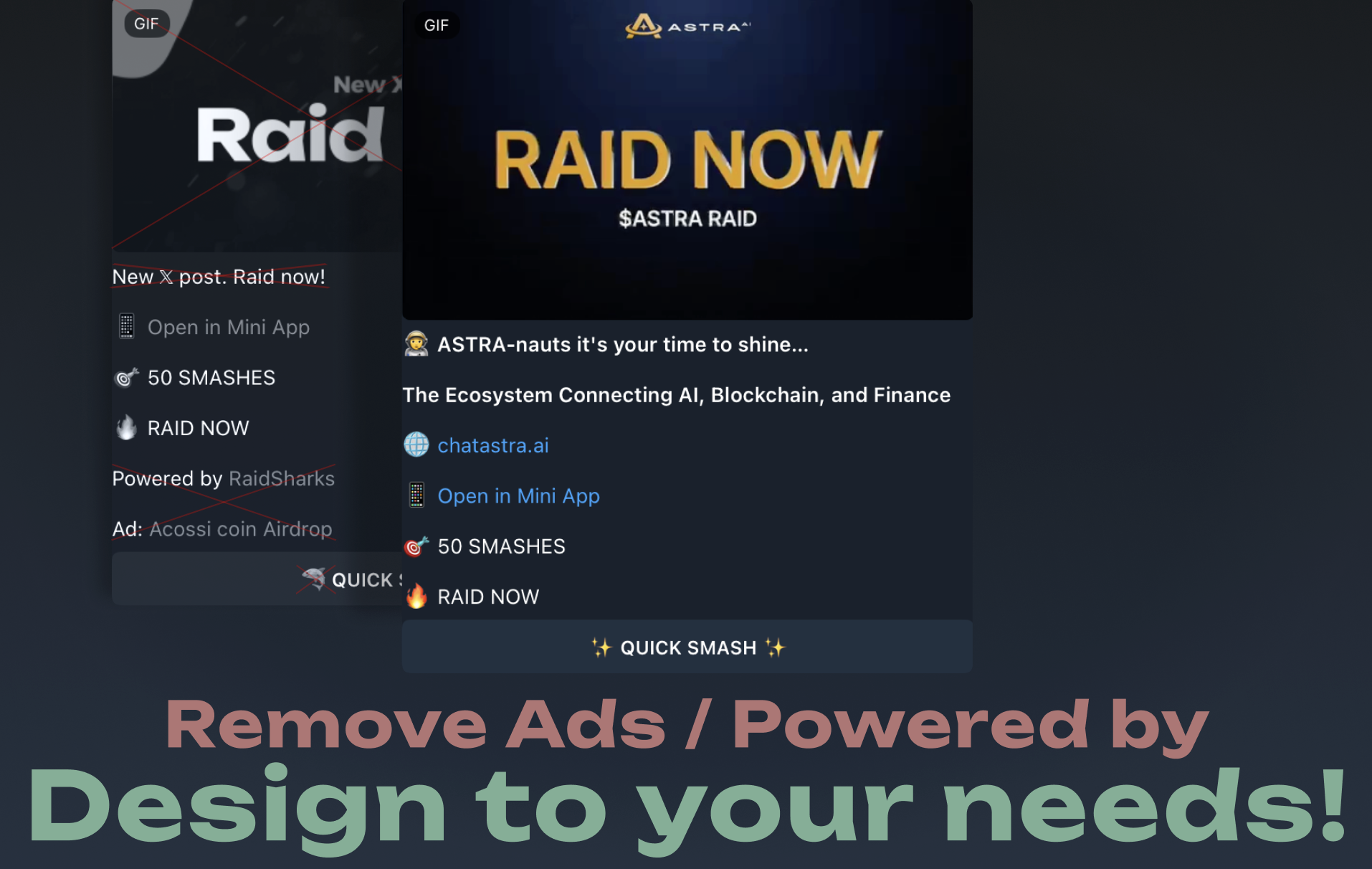
This cost-effective option lets you make small adjustments to your bot, ensuring it aligns with your brand while keeping costs low. You can select changes like removing ads, updating emojis, or using custom Raid videos, saving money on unnecessary modifications.

***

{% content-ref url="/pages/o7Ef759HoSVXGxMzBsJN" %}
[White Label Solution](/customization/white-label-solution)
{% endcontent-ref %}

The best value for a fully customized, ad-free bot experience that reflects your brand, including a custom username, logo, and exclusive features.

***

## What´s the main difference between both options?

<table data-header-hidden data-full-width="false"><thead><tr><th width="176"></th><th width="89"></th><th width="121"></th></tr></thead><tbody><tr><td><strong>Feature</strong></td><td><strong>White Label</strong></td><td><strong>Customize</strong></td></tr><tr><td><strong>Custom GIF for raid start</strong></td><td>✅</td><td>✅</td></tr><tr><td><strong>Custom GIF for end message</strong></td><td>✅</td><td>✅</td></tr><tr><td><strong>Custom Texts</strong></td><td>✅</td><td>✅</td></tr><tr><td><strong>Custom Emojis (standard TG)</strong></td><td>✅</td><td>✅</td></tr><tr><td><strong>Own Bot Name</strong></td><td>✅</td><td>❌</td></tr><tr><td><strong>Own Bot Logo</strong></td><td>✅</td><td>❌</td></tr><tr><td><strong>Use your branding in multiple groups</strong></td><td>✅</td><td>❌</td></tr><tr><td><strong>Ad-free for lifetime</strong></td><td>✅</td><td>✅</td></tr><tr><td><strong>Ad-free across multiple groups</strong> <br><strong>(Ownership approval needed)</strong></td><td>✅</td><td>❌</td></tr><tr><td><strong>API Access (on request)</strong></td><td>✅</td><td>❌</td></tr><tr><td><strong>All future premium features</strong></td><td>✅</td><td>❌</td></tr><tr><td><strong>5 Customization Wizard Credits</strong></td><td>✅</td><td>❌</td></tr><tr><td><strong>Announcement from official X accounts</strong></td><td>✅</td><td>❌</td></tr><tr><td><strong>Services Discount</strong></td><td>✅</td><td>❌</td></tr><tr><td><strong>Referral link (earn money)</strong></td><td>✅</td><td>❌</td></tr><tr><td><strong>Premium Support</strong></td><td>✅</td><td>❌</td></tr></tbody></table>


# Customize for Group

Cost-Effective Customization for Your Brand

This option offers the most efficient and cost-effective way to make small adjustments to your bot, ensuring it aligns with your brand while keeping investment costs minimal. It allows you to selectively choose the changes you want, helping you save money on aspects that don’t require modification.

<figure><img src="/files/hprM5xZI8Dj4hWTTNhQW" alt=""><figcaption></figcaption></figure>

### 👉 **Getting Started**

<mark style="color:purple;">To start the Customization Wizard:</mark>

1. Use the command [**/customize**](/quick-commands-guide/customize) in your group
2. Follow the Button to be redirected to Bot DM

{% hint style="warning" %}
You must be an admin in the selected group, and the bot must also have admin rights.

No changes are applied or credits are reducted before you confirmed the last step ["Finish & Save"](#finish-and-save).
{% endhint %}

***

## Pricing - <mark style="color:green;">Fits every budget!</mark>

* **📝 Texts** - <mark style="color:green;">**$20**</mark> <mark style="color:green;"></mark><mark style="color:green;">(1 Credit)</mark>\
  Personalize RAID START and RAID END messages
* **🎬 Media** - <mark style="color:green;">**$20**</mark> <mark style="color:green;"></mark><mark style="color:green;">(1 Credit)</mark>\
  &#x20;Upload RAID START and RAID END videos/GIFs
* **😃 Emoji** - <mark style="color:green;">**$40**</mark> <mark style="color:green;"></mark><mark style="color:green;">(2 Credits)</mark>\
  Set a Telegram standard emoji for bot outputs
* **🚫 "Powered By" Tag** -  <mark style="color:green;">**$200**</mark> <mark style="color:green;"></mark><mark style="color:green;">(10 Credits)</mark>\
  Remove "Powered by RaidSharks" tag permanently
* **🔕 No Ads** -  <mark style="color:green;">**$400**</mark> <mark style="color:green;"></mark><mark style="color:green;">(20 Credits)</mark>\
  Remove all ads from the bot (Telegram + Mini App)

{% hint style="info" %}
Credits can be bought directly in the wizard with SOL, BNB, ETH or ETH on Base. Other currencies accepted on request only. Credits purchased are bound to the Group ID, not to a certain User.\
\ <mark style="color:$danger;">Credits will be charged for EACH customization, so you are NOT paying for the ability to make customization multiple times.</mark>
{% endhint %}

***

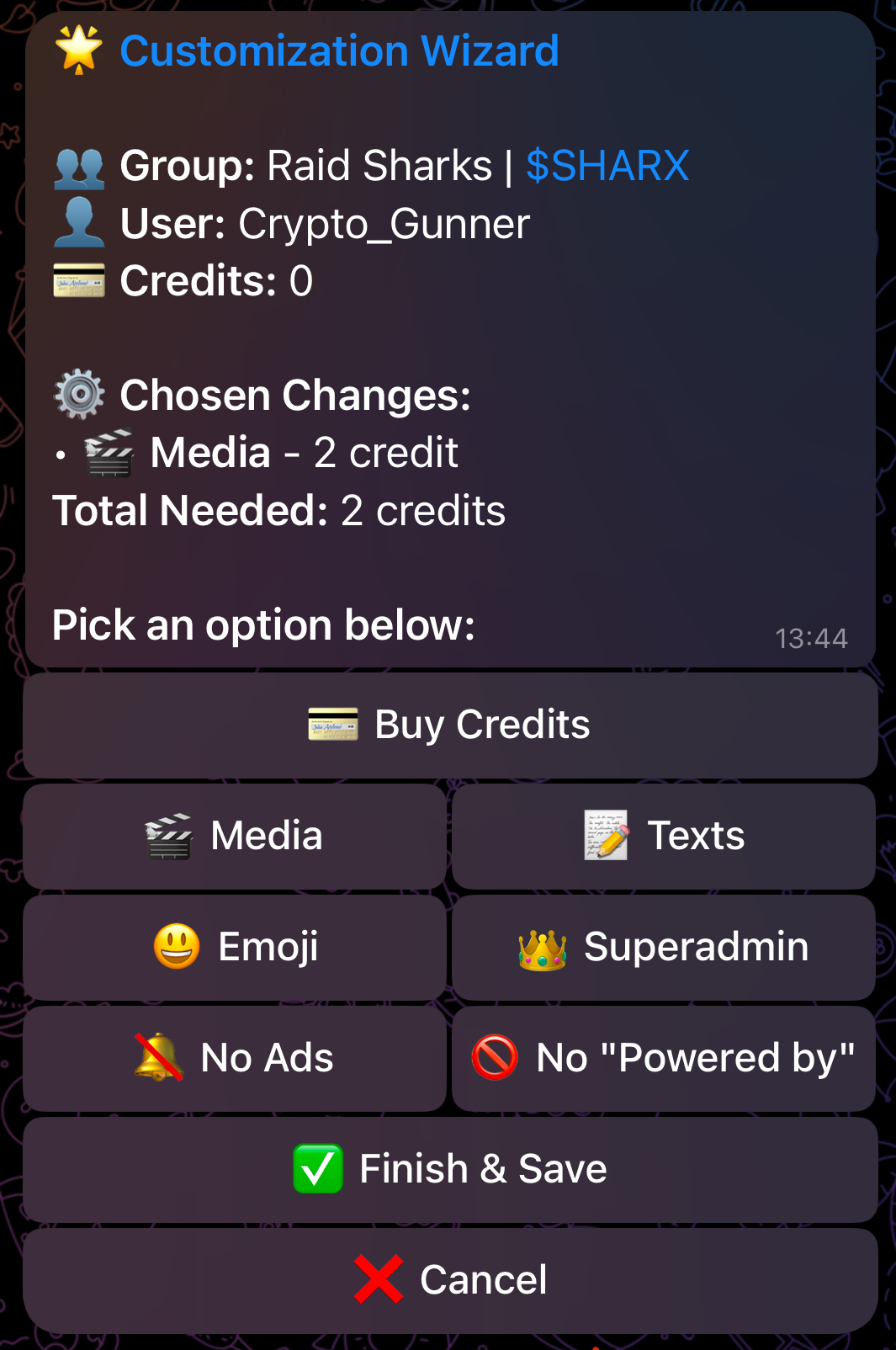
### **Main Menu**

<figure><img src="/files/FzoWmO16Z7Qgvo0ChDFC" alt="" width="375"><figcaption></figcaption></figure>

Once a group is selected, the wizard displays a main menu with following options:

* **💳** [**Buy Credits**:](#buy-credits) Add more credits to your group for customization.
* **🎬** [**Media**: ](#media)Set custom media for RAID START and RAID END message.
* **📝** [**Texts**:](#texts) Customize the RAID START and RAID END message textes.
* **😃** [**Emoji**:](#emoji) Choose a specific emoji for bot outputs and buttons.
* **🔕** [**No Ads**:](#no-a-ds) Remove ads from the bot’s messages.
* **🚫** [**No "Powered by"**:](#no-powered-by) Remove the "Powered by" branding.
* **✅** [**Finish & Save**:](#finish-and-save) Apply the selected changes.
* **❌** [**Cancel**:](#canceling-the-wizard) Exit the wizard without saving changes.

We will go through each Option below!

***

### **💳 Buy Credits**

Add credits to your group to enable customization. Each credit comes from 20 USD.

#### **Steps**

1. **Set Credit Amount**:
   * Use the "➕" and "➖" buttons to adjust the number of credits to buy.
2. **Confirm Purchase**:
   * The bot generates a payment link.
   * Click the provided link to complete the payment safely with [Radom](https://www.radom.com/de-de/crypto-payments).
3. **Credits Applied**:
   * Once payment is successful, hit the refresh button within confirmation message. Then continue customization. If you left the wizard in the meantime, use [/customize](/quick-commands-guide/customize) command from within your group again.

{% hint style="info" %}
Please note, that CREDITS are bound to your group, not to a User. So all admins can access them and use them to customize the bot for that specific group.
{% endhint %}

***

### **🎬 Media**

The **Media** option allows you to set custom RAID START and RAID END videos or GIFs for your group. You can use MP4 or GIF files up to 15MB in file size. Pictures are not supported yet, but you can easily convert them to GIF files with this free utility: <https://ezgif.com/maker>

#### **Steps**

1. **Send RAID START Media**:
   * The bot will prompt you to upload a video or GIF (maximum 15 MB).
   * After uploading, the bot saves it temporarily.
2. **Send RAID END Media**:
   * Upload a second video or GIF for the RAID END event.
   * The bot will confirm when both files are received.
3. **Confirm Media**:
   * The bot will display a confirmation message with options:
     * 🔄 Re-upload: Restart the media upload process.
     * ✅ Confirm: Save the uploaded media.
     * ❌ Cancel: Discard changes.

{% hint style="info" %}
BOTH Media can be changed for 1 credit
{% endhint %}

***

### **📝 Texts**

Customize textes shown within the RAID START and RAID END messages during raids. Please note, that some of the textes shown in Raid Messages are fixed and you cannot change them.

#### **Steps**

1. **Enter RAID START Text**:
   * The bot will prompt you to input text (maximum 600 characters).
2. **Enter RAID END Text**:
   * Provide text for the RAID END message (maximum 600 characters).
3. **Confirm Texts**:
   * The bot will display a preview of both messages and ask for confirmation.
   * Options:
     * 🔄 Re-enter: Modify the text.
     * ✅ Confirm: Save the text.
     * ❌ Cancel: Discard changes.

{% hint style="warning" %}
Texts are automatically escaped for safe formatting in Markdown v2. The preview for Raid END message may contain a few characters you did not enter manually. Just ignore that.
{% endhint %}

{% hint style="info" %}
BOTH Textes can be changed for 1 credit!
{% endhint %}

***

### **😃 Emoji**

Assign a custom emoji to be shown in certain bot outputs and also in the "Raid" or "Quick Smash" button. RaidSharksBot usually displays this Emoji in standard "🦈". You can replace that with an standard Telegram Emoji of your choice.

#### **Steps**

1. **Enter Emoji**:
   * The bot will prompt you to input an emoji or an Emoji array (maximum 3 Emojis).
   * Only standard emojis are allowed (no Telegram premium/custom emojis).
2. **Confirm Emoji**:
   * Options:
     * 🔄 Re-enter: Change the emoji.
     * ✅ Confirm: Save the emoji.
     * ❌ Cancel: Discard changes.

***

### **🚫 No "Powered by"**

You can remove the "Powered by RaidSharks" tag which is usually shown in the Raid Message. Example below:

#### **Steps**

1. **Select Remove Ads**:
   * The bot will confirm the cost in credits.
2. **Confirm Removal**:
   * Options:
     * ✅ Yes: Deduct credits and apply the change.
     * ❌ No: Cancel the action.

{% hint style="warning" %}
These changes are permanent for your group once confirmed. Once removed you cannot restore it through the wizard. Reach out to support in that case.
{% endhint %}

***

### **🔕 No Ads**

You can <mark style="color:purple;">remove Ads</mark> from RaidSharksBot. That <mark style="color:purple;">includes Text ads</mark> within the Raid messages <mark style="color:purple;">and also Graphical Banner Ads</mark> which are shown within the mini application Raid Tab. It does not remove featured spots or trending highlights in Trending tab.

#### **Steps**

1. **Select Remove Ads**:
   * The bot will confirm the cost in credits.
2. **Confirm Removal**:
   * Options:
     * ✅ Yes: Deduct credits and apply the change.
     * ❌ No: Cancel the action.

{% hint style="warning" %}
These changes are permanent for your group once confirmed. Once removed you cannot restore it through the wizard. Reach out to support in that case!
{% endhint %}

***

### **✅ Finish & Save**

Apply all selected changes and deduct the required credits shown..

#### **Steps**

1. **Review Changes**:
   * The bot summarizes the total credits needed and the available credits.
2. **Apply Changes**:
   * If sufficient credits are available, the bot applies the changes.
   * Options:
     * 💳 Buy Credits: Add more credits if needed.
     * ✅ Confirm: Finalize and save the changes.
     * ❌ Cancel: Exit without saving.
3. **Confirmation**:
   * The bot confirms that changes were applied successfully.

***

### **❌ Canceling the Wizard**

At any point, you can exit the wizard by typing `/cancel`. All unsaved changes will be discarded and no credits will be charged.

***

## EXCLUSIVE  - White Label Solution

This customization is beyond changing Graphics and using the wizard. It will be your own bot without branding or a "Powered by RaidSharks" tag inside the raid message. So you can bring your own Brand to others.

It includes your branding, your own bot name, custom textes, emoji and graphics (more details below). Furthermore it brings other benefits in regards to customization, discounts for services and exposure for your project.\
\
We offer superior 24/7 support to all of our Whitelabel customers and we also support them whenever we can.

Main contacts: [@Crypto\_Gunner](https://t.me/Crypto_Gunner) / [@Dante\_9circles](https://t.me//Dante_9circles) / [@DeathWishCrypto](https://t.me/DeathWishCrypto)

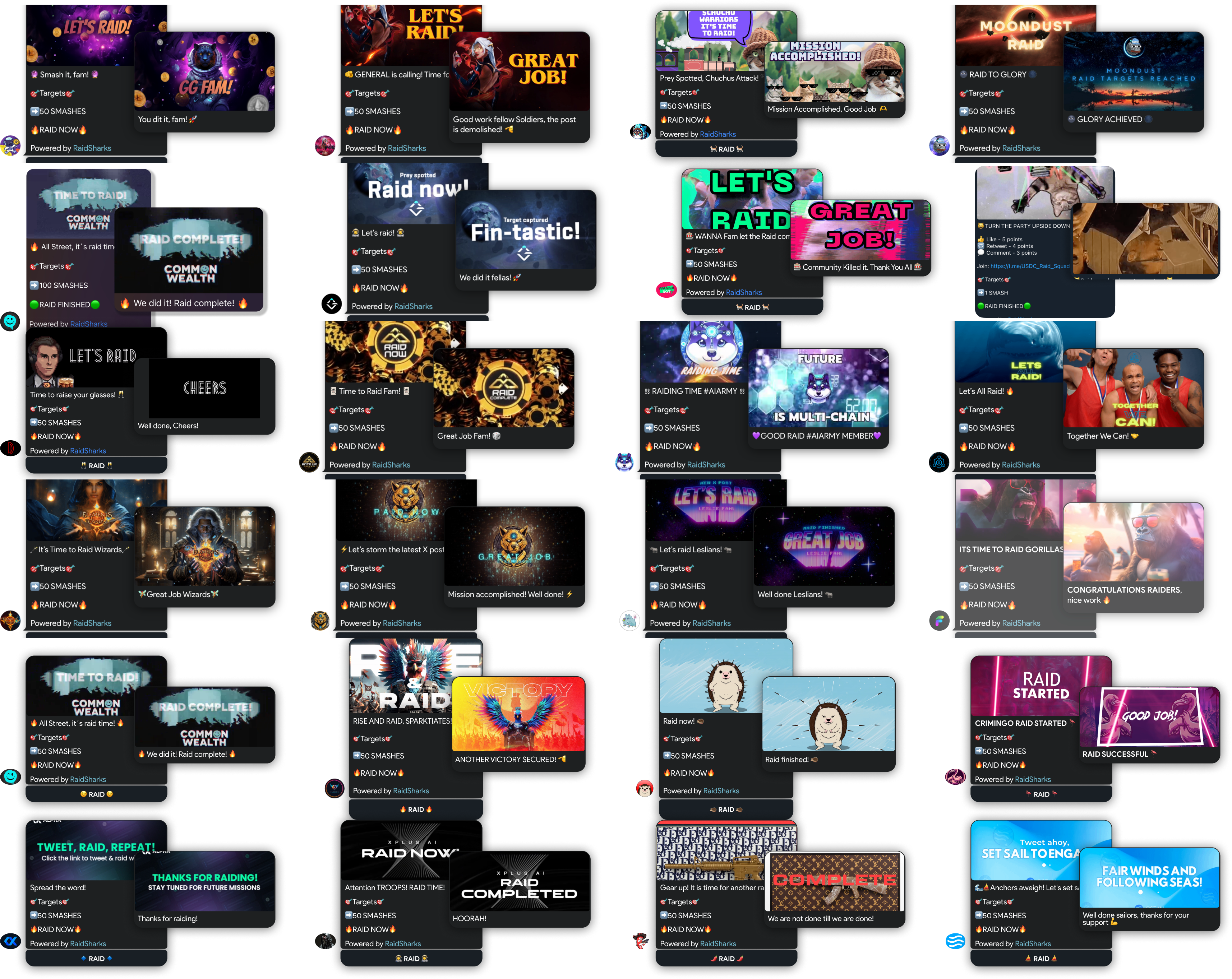
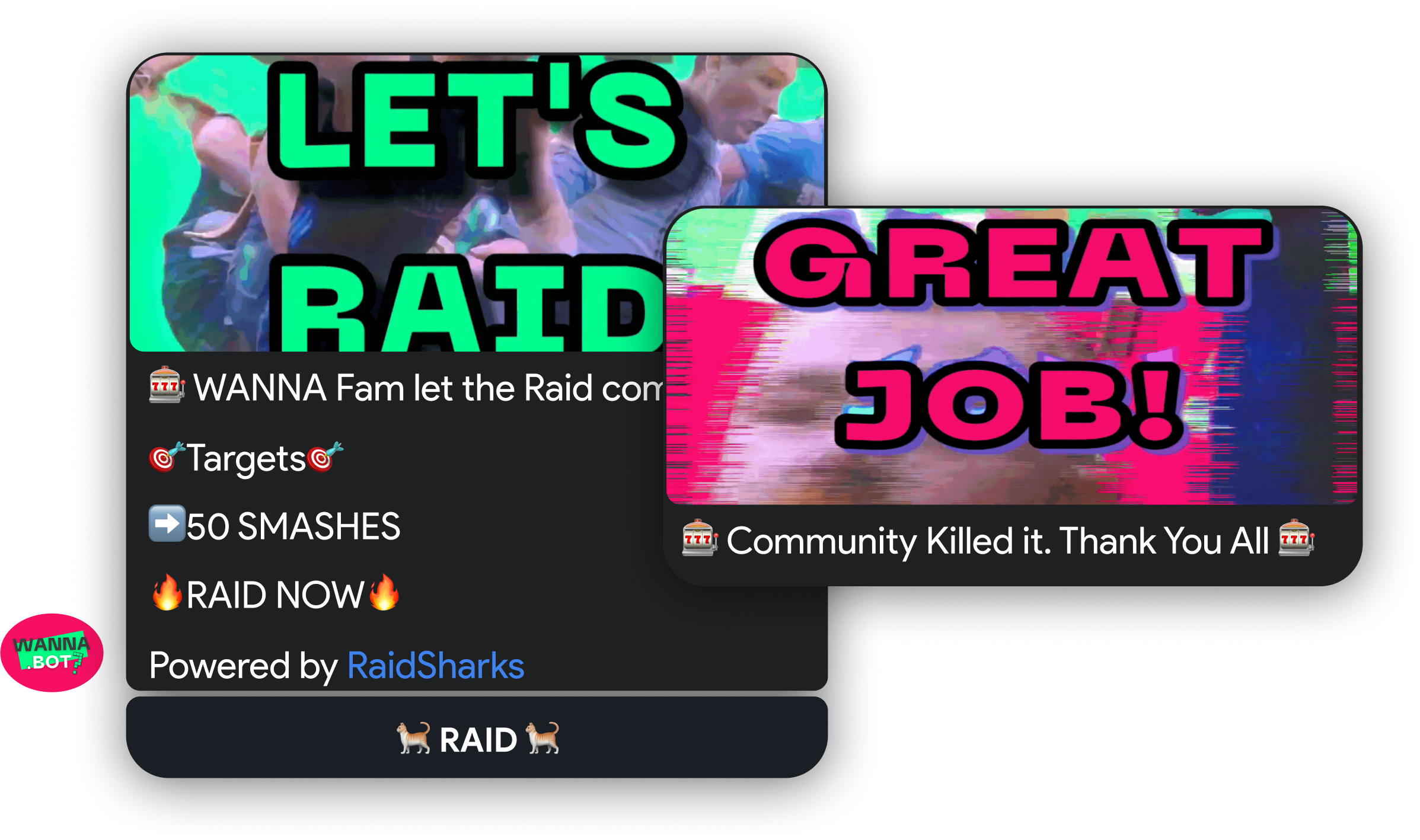
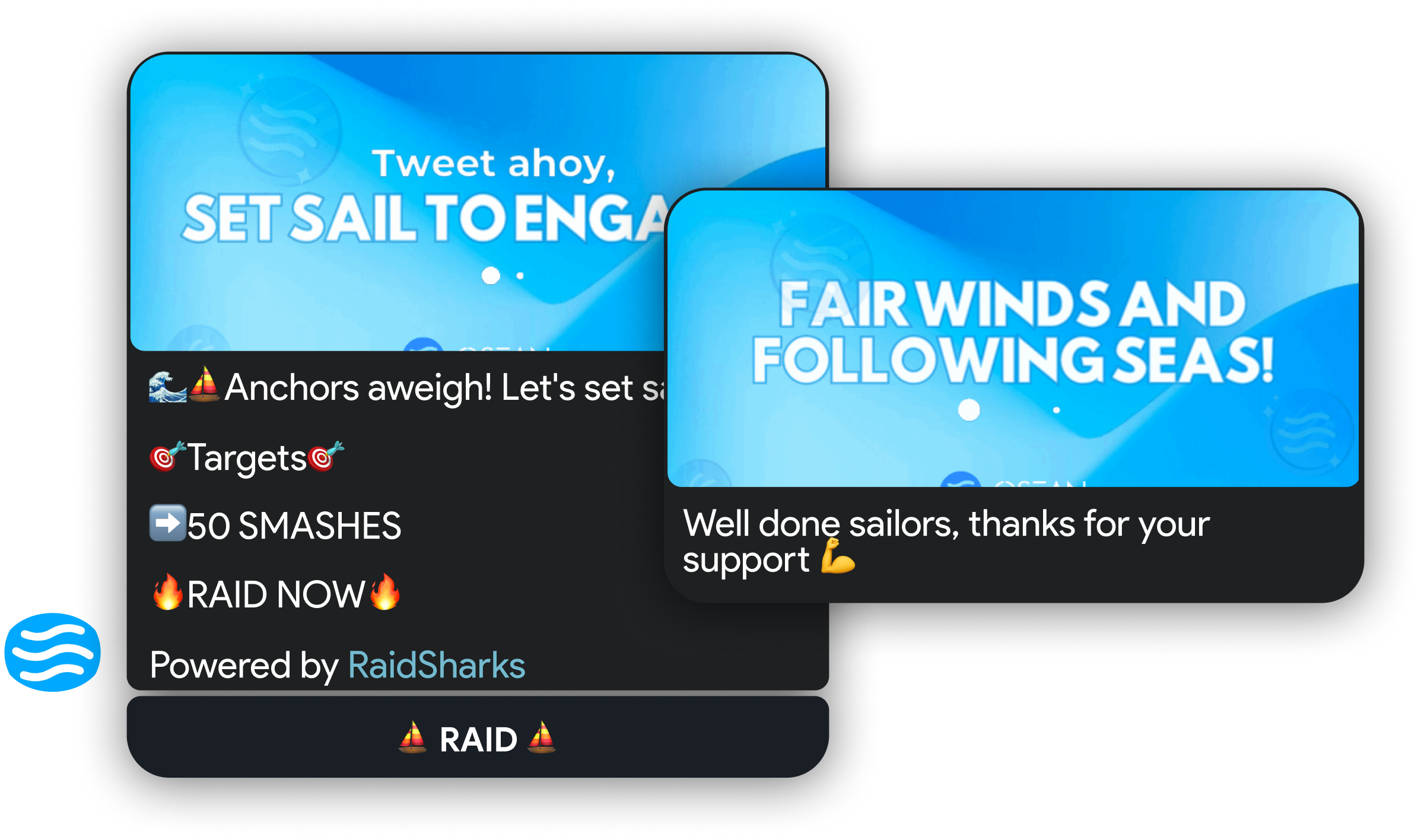
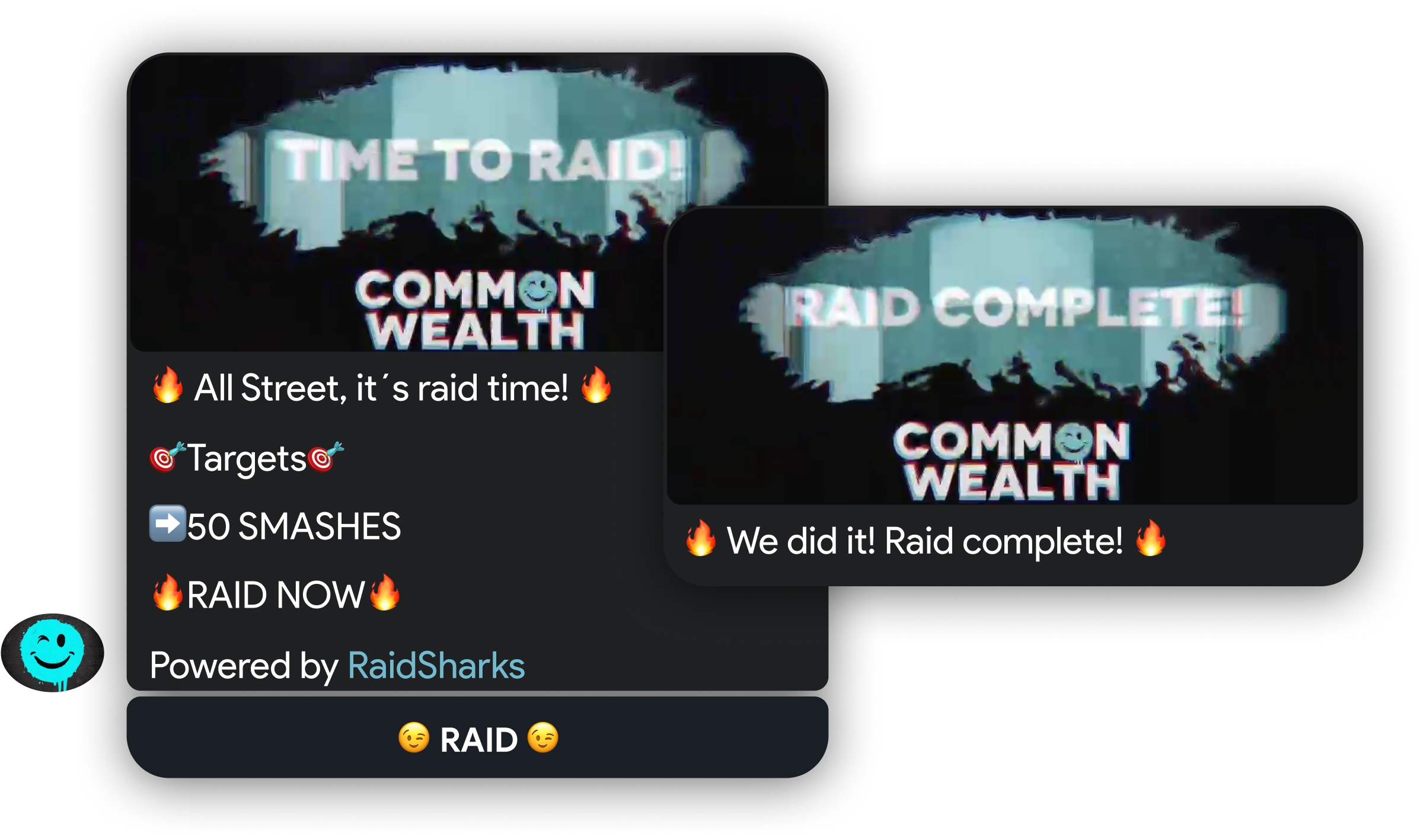
## Examples

{% tabs %}
{% tab title="Customize" %}

<figure><img src="/files/oweGSnyU4QCBNOlYjpob" alt=""><figcaption></figcaption></figure>
{% endtab %}

{% tab title="Examples" %}

<figure><img src="/files/fhzRm8yiH0jh6yn6At3U" alt=""><figcaption></figcaption></figure>
{% endtab %}

{% tab title="WANNA" %}

<figure><img src="/files/lPhW2VBBtqqjX4sL60f0" alt=""><figcaption></figcaption></figure>
{% endtab %}

{% tab title="Osean DAO" %}

<figure><img src="/files/OFKkDks6bnvc8mKZ8aWo" alt=""><figcaption></figcaption></figure>
{% endtab %}

{% tab title="Common Wealth" %}

<figure><img src="/files/Nw3dnLgXvhPJHOeeUkxD" alt=""><figcaption></figcaption></figure>
{% endtab %}
{% endtabs %}

***

## What does it include?

1. Customized GIF for start of a raid
2. Customized GIF for end message
3. Customized Textes
4. Customized Emoji (standard TG)
5. Your own Bot name
6. Your own Bot logo
7. Ad-free for lifetime
8. All future premium functions included
9. 100 Customization Wizard Credits / Change your bot on the fly
10. An Announcement from our two official X accounts (+55k Followers)
11. Special conditions (discount) for [advertising](/advertising) within [@RaidSharksBot](https://t.me/raidsharksbot?startgroup=_)

{% embed url="<https://raidsharksbot.com/customize.html>" %}

***

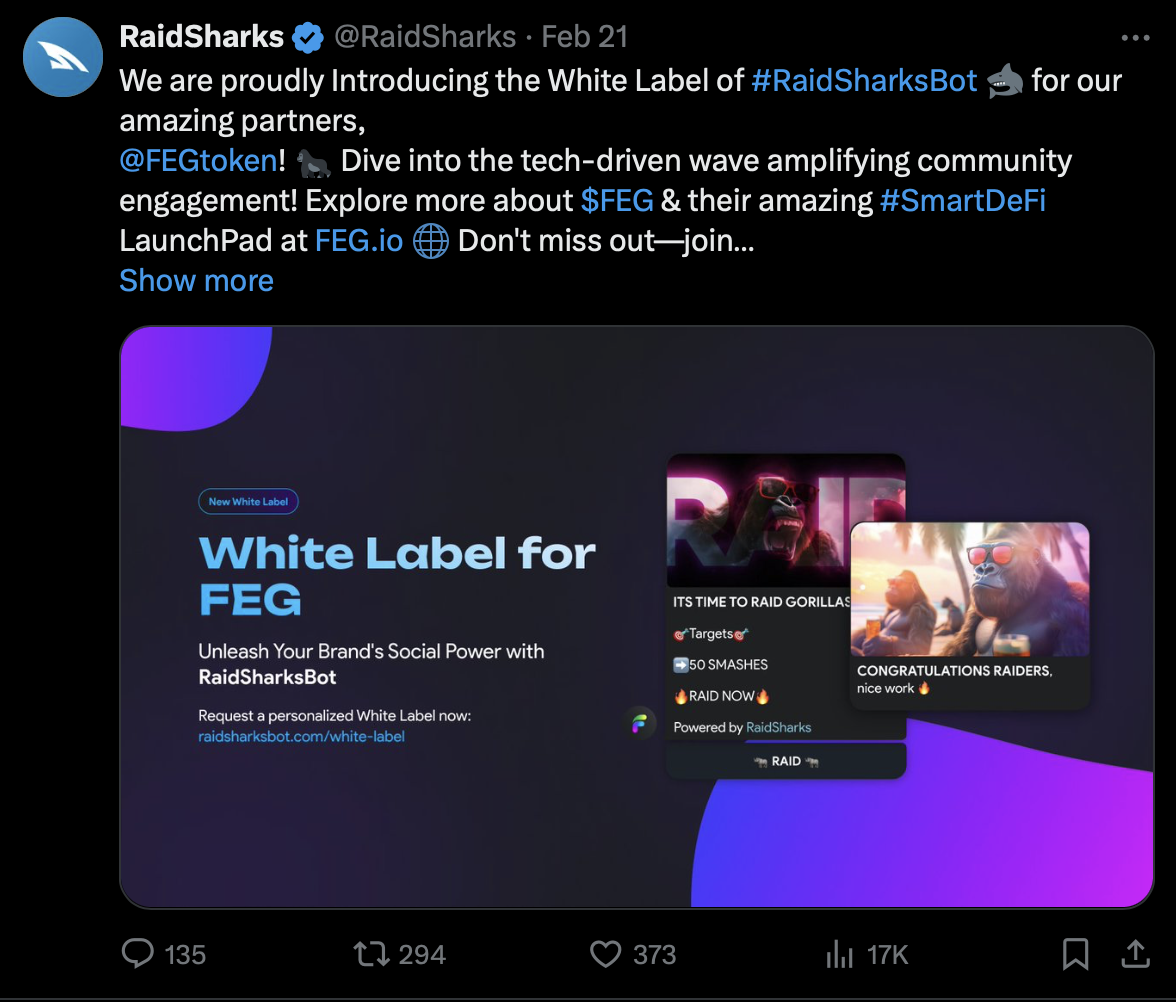
<figure><img src="/files/rnIsoMm6OHoucGxCTBcw" alt=""><figcaption><p>X Announcement for White Label</p></figcaption></figure>

***

## How much is it?

There are two main options...

1. [Customizing a bot for your group](/customization) by making use of our Customization Wizard. That let you change every bot available to fit your group. In example setting your own Raid Start Video and Raid End Video comes for 1 credit (20 USD). There are a lot of options to choose from and it fits every budget, cause you can fully customize your experience as you like. Pay only what you need to change!
2. Go for a fully customized [White Label solution](#full-customization-white-label-solution) which comes at a <mark style="color:green;">one-time payment of 0.25 ETH.</mark> That includes some exclusive benefits like an announcement from official X Accounts which also brings a lot of eyes to your project. Furthermore, you get exclusive support, your own bot username and your own bot logo. So it´s basically your own bot. Ownership can be transfered on request if you like to.

{% hint style="success" %}
Also watch out for Special Offers, which won´t be mentioned here!
{% endhint %}

***

## How can I request a fully customized Raid Bot?

You can request your full customized "White Label" of our bot here:

{% embed url="<https://raidsharksbot.com/customize.html>" %}
Send full Whitelabel Request
{% endembed %}

Or just DM: [@Crypto\_Gunner](https://t.me/Crypto_Gunner) / [@Dante\_9circles](https://t.me//Dante_9circles) / [@DeathWishCrypto](https://t.me/DeathWishCrypto)

## How can customize a bot for my group?

Use[ /customize](/quick-commands-guide/customize) command in your group!


# White Label Solution

Ultimate Brand Experience with Full Customization

This customization is beyond changing Graphics for a single group by using the customization wizard. It is a complete rebrand and it will be your own bot without any ads or a "Powered by RaidSharks" tag inside the raid message. So you can bring your own brand to others.

It includes your own bot name, bot logo, custom texts, emoji and graphics [(more details below)](#what-does-it-include). Furthermore, it also brings other benefits like API Access, discounts for services and exposure for your project.\
\
We offer superior 24/7 support to all of our Whitelabel customers and we also support them whenever we can. Going for this options means more than just buying a Raid Bot.

Main contacts: [@Crypto\_Gunner](https://t.me/Crypto_Gunner) / [@Dante\_9circles](https://t.me//Dante_9circles) / [@DeathWishCrypto](https://t.me/DeathWishCrypto)

## Examples

{% tabs %}
{% tab title="Customize" %}

<figure><img src="/files/oweGSnyU4QCBNOlYjpob" alt=""><figcaption></figcaption></figure>
{% endtab %}

{% tab title="Examples" %}

<figure><img src="/files/fhzRm8yiH0jh6yn6At3U" alt=""><figcaption></figcaption></figure>
{% endtab %}

{% tab title="WANNA" %}

<figure><img src="/files/lPhW2VBBtqqjX4sL60f0" alt=""><figcaption></figcaption></figure>
{% endtab %}

{% tab title="Osean DAO" %}

<figure><img src="/files/OFKkDks6bnvc8mKZ8aWo" alt=""><figcaption></figcaption></figure>
{% endtab %}

{% tab title="Common Wealth" %}

<figure><img src="/files/Nw3dnLgXvhPJHOeeUkxD" alt=""><figcaption></figcaption></figure>
{% endtab %}
{% endtabs %}

***

## What does it include?

1. Customized GIF for start of a raid
2. Customized GIF for end message
3. Customized Textes
4. Customized Emoji (standard TG)
5. <mark style="color:green;">Your own Bot name \*</mark>
6. <mark style="color:green;">Your own Bot logo \*</mark>
7. Ad-free for lifetime
8. <mark style="color:green;">Ad-free across multiple groups (ownership mandatory) \*</mark>
9. <mark style="color:green;">API Access (on request) \*</mark>
10. <mark style="color:green;">All future premium functions included \*</mark>
11. <mark style="color:green;">An Announcement from our two official</mark> [<mark style="color:blue;">X accounts</mark>](https://x.com/bullshark_3) <mark style="color:green;">(+55k Followers) \*</mark>
12. <mark style="color:green;">Special conditions (discount) for</mark> [<mark style="color:green;">advertising</mark>](/advertising) <mark style="color:green;">within</mark> [<mark style="color:green;">@RaidSharksBot</mark>](https://t.me/raidsharksbot?startgroup=_) <mark style="color:green;">\*</mark>
13. <mark style="color:green;">Referral link - Earn money by bringing the tech to others (on demand) \*</mark>

<mark style="color:green;">**\***</mark> <mark style="color:green;"></mark><mark style="color:green;">Exclusive to White Label Solution</mark>

{% embed url="<https://raidsharksbot.com/customize.html>" %}

***

<figure><img src="/files/rnIsoMm6OHoucGxCTBcw" alt=""><figcaption><p>X Announcement for White Label</p></figcaption></figure>

***

## How much is it?

There are two main options...

A fully customized [White Label solution](#full-customization-white-label-solution) comes for a <mark style="color:green;">one-time payment of $500.</mark> That includes some exclusive benefits like an announcement from official X Accounts which also brings a lot of eyes to your project. Furthermore, you get exclusive support, your own fixed bot username, your own bot logo and API access. So it´s basically your own bot. Bot Ownership can be transfered on request if you like to.\
Also, this version is capable of working ad-free in multiple groups (groups need to be whitelisted and ownership proofed).

{% hint style="success" %}
Also watch out for Special Offers, which won´t be mentioned here!
{% endhint %}

{% hint style="warning" %}
Please note that once a Whitelabel is set up, only minor adjustments can be made upon request. However, the overall design is intended to remain fixed, and certain elements — such as the bot username — cannot be changed afterward.
{% endhint %}

***

## How can I request a fully customized Raid Bot?

You can request your full customized "White Label" of our bot here:

{% embed url="<https://raidsharksbot.com/customize.html>" %}
Send full Whitelabel Request
{% endembed %}

Or just DM: [@Crypto\_Gunner](https://t.me/Crypto_Gunner) / [@Dante\_9circles](https://t.me//Dante_9circles) / [@DeathWishCrypto](https://t.me/DeathWishCrypto)


# Advertising

This section describes different advertising options available in RaidSharksbot.

### 👉 **Getting Started**

<mark style="color:purple;">To start the AD-Booking Wizard:</mark>

1. Use the command[ **/ads**](/quick-commands-guide/ads) **or click the link below**
2. Use the wizard to book your ad.

{% embed url="<https://t.me/RaidSharksBot?start=bookAd>" %}
BOOK YOUR AD NOW!
{% endembed %}

<figure><img src="/files/V42IjuK9yrkK3e0JxhYu" alt="" width="563"><figcaption><p>AD-Booking Wizard</p></figcaption></figure>

***

## What Ad Type to choose?

Graphical Banner ads are the best choice and most effective way to advertise with RaidSharksBot.

Best practice is to combine it with an Text Ad in the same day slot.

{% content-ref url="/pages/jBA5DEoLlyflqx0GR7VR" %}
[Text Ads](/advertising/text-ads)
{% endcontent-ref %}

{% content-ref url="/pages/29b1KJSY9DuqoZmKpueH" %}
[Graphical Ads](/advertising/graphical-ads)
{% endcontent-ref %}

{% content-ref url="/pages/DS44eygG1ccl7JypTlzE" %}
[Trending Highlight](/advertising/trending-highlight)
{% endcontent-ref %}

{% content-ref url="/pages/t5A8sQlFu1oR3sHEILd9" %}
[Featured Spot](/advertising/featured-spot)
{% endcontent-ref %}


# Graphical Ads

Premium Graphical-Ads - Best visibility in RaidSharksBot.

## Pricing and Duration

Graphical Banner Ads in RaidSharksBot starts for a very affordable rate 50 USD per 24 hours.\
\
Each "Slot" covers 24h and there is no "best" spot like on many other Telegram Bots. The ads can "rotate" within the bots and groups and the inbuilt algorithm makes sure, that ads are being displayed to as much different user´s as possible, but it also makes sure, that it's displayed to the same user multiple times to increase brand recognition. There is a maximum of 3 Slots per day available so the amount of ads to rotate is limited. If you’d like to book all available ad spots on a particular day, simply use the booking wizard and book a "premium" spot.

***

## 🌟 Premium

You can book Premium Ads – meaning your ad will be shown exclusively on that particular day. 📅✨&#x20;

This reserves all available ad slots for a specific ad type for your project at once, making that day unavailable for others. 🚫

Important: Premium ads are only available as long as no other ad slot was booked on that day 🛑

***

## Where is my Ad shown?

RaidSharksBot´s graphical animated ads are shown within the Mini Application of the free version of RaidSharksBot and all other customized Bots which did not purchase AD-Free package.\
\ <mark style="color:green;">RaidSharksbot´s graphical ads are very effective and reach high Click-Through-Rates.</mark> This high CTR rate makes advertising with RaidSharksBot very effective and cost-efficient.\
\
Because most Telegram bots are not able to gain valuable data of CTR rates, they solely focus on increasing impressions. RaidSharksBot is far beyond that and focusses on high quality and attractive ad displays and an optimal CTR rate.&#x20;

As a project owner, that is exactly what you are after!

GIF´s are displayed within the User Interface.

<figure><img src="/files/dcSm6DT8Ua9oKFOE3mMY" alt="" width="375"><figcaption><p>Moving GIF is displayed within User Interaface</p></figcaption></figure>

<figure><img src="/files/dzIBv2aknASB8gvvI9Jn" alt="" width="375"><figcaption><p>Banner and GIF examples</p></figcaption></figure>


# Text Ads

Text-based Ads - A cost-effective way to advertise with RaidSharksBot.

## Pricing and Duration

You can book a 24-hour ad slot for just $25! We have 3 ad spots available each day, which will rotate during each raid. If you’d like to book all available ad spots on a particular day, simply use the booking wizard and book a "premium" spot.

***

## 🌟 Premium

You can book Premium Ads – meaning your ad will be shown exclusively on that particular day. 📅✨&#x20;

This reserves all available ad slots for a specific ad type for your project at once, making that day unavailable for others. 🚫

Important: Premium ads are only available as long as no other ad slot was booked on that day 🛑

***

## Where is my ad shown?

\
Your ad will be featured at the bottom of every raid message and in the final message of each raid.

It will be visible to all Telegram members using the free version of RaidSharksBot. The bot reposts itself multiple times during an ongoing raid, ensuring your ad is displayed several times and automatically moves to the bottom of the chat.

Examples:

<figure><img src="/files/k8HLQSPPRa6MomlvyUw5" alt="" width="375"><figcaption><p>Text Ad at the bottom of initial Raid Message</p></figcaption></figure>

<figure><img src="/files/4LLQAvoj59gggRkEZ7va" alt="" width="375"><figcaption><p>Text Ad at the bottom of Raid End Message</p></figcaption></figure>


# Trending Highlight

## Pricing and Duration

You can book a 24-hour ad slot for 150$! We have 3 ad spots available each day, which will rotate during each opening of the Mini App Trending page. If you’d like to book all available ad spots on a particular day, simply use the booking wizard and book a "premium" spot.

***

## 🌟 Premium

You can book Premium Ads – meaning your ad will be shown exclusively on that particular day. 📅✨&#x20;

This reserves all available ad slots for a specific ad type for your project at once, making that day unavailable for others. 🚫

Important: Premium ads are only available as long as no other ad slot was booked on that day 🛑

***

## Where is my ad shown?

\
**Your ad will be placed in a highly prominent position on the main Trending page within the mini application.**\
\
Please note that we will review your project before placing the ad. The ad will be visible to all Telegram users accessing the Trending page.

{% hint style="info" %}
We reserve the right to reject any applications that are considered spam, low-quality, irrelevant, or otherwise unsuitable for our audience.

To book this type of advertising, it is **mandatory** to have **RaidSharksBot installed and active in your main Telegram group**.
{% endhint %}

:point\_right: **RaidSharksBot Mini App:** [Open Mini App](https://t.me/raidsharksbot?profile)

Example:

<figure><img src="/files/7CIz1tpOzxZQ5HEXgXB7" alt="" width="375"><figcaption></figcaption></figure>


# Featured Spot

## Pricing and Duration

You can book a 24-hour slot for just $50! For this ad-type we have just one ad spot available each day.

***

## Where is my ad shown?

\
Your ad will appear as an **icon at the top of the main Trending page** within the Mini App. This premium placement is reserved for **partners and valuable tools**.

{% hint style="info" %}
We reserve the right to reject any applications that are considered spam, low-quality, irrelevant, or otherwise unsuitable for our audience.

To book this type of advertising, it is **mandatory** to have **RaidSharksBot installed and active in your main Telegram group**.
{% endhint %}

:point\_right: **RaidSharksBot Mini App:** [Open Mini App](https://t.me/raidsharksbot?profile)

Example:

<figure><img src="/files/6yr5vA7qsL6IUF7eAbNK" alt="" width="375"><figcaption></figcaption></figure>


# Finley AI

{% embed url="<https://youtu.be/W8dTH8ahCzA?si=2hnDToSf8sswZyHA>" %}

## **What is Finley AI?**

Finley AI is designed to enhance your raiding experience and helps to prevent shadow ban by providing AI-generated comment suggestions. These suggestions are crafted based on basic information about the project (set up by admins / group owners) and the specific tweet you are currently raiding. It adapts to whatever content is in there and will provide its suggestions within the raid tab just above the smash button. You can easily copy it with one click and paste it as your comment on X. <mark style="color:green;">Finley AI is completely free of charge for all our customers.</mark>


# Basic Setup

Finley AI is ready to go out of the box. It does not need any setup or information on first install. \
However, AI gets better and more powerful by adjusting it to your needs in regards to tone, humor, energy and variation and giving it more information about your project.

<figure><img src="/files/Iyi3P1TqD0a8294SvDtt" alt=""><figcaption><p>Finley AI needs to be activated in settings tab to be shown to your raiders</p></figcaption></figure>

{% hint style="danger" %}
[ACTIVATE Finley AI in settings tab](/raid-settings/ai-replies) to make Finley visible for your Raiders. You can deactivate it as well anytime without loosing your configuration.
{% endhint %}


# Advanced

Finley AI is a powerful tool that helps you produce AI-generated tweet comments. It allows you to set various style and behavior parameters so that the generated comment aligns with your brand’s voice and the context of the tweet. The interface is organized into several sections that let you control aspects like tone, humor, energy, length, and specific restrictions.

## Profile Information

<figure><img src="/files/bfndsVt7VULMf3ibghYi" alt="" width="375"><figcaption></figcaption></figure>

**What It Does:**\
This section is used to define the branding details that may be integrated into the generated tweet comment.

**Settings:**

* **Hashtag:**\
  Enter your project’s hashtag (e.g., `#MyCrypto`). This will be included in the comment if restrictions do not block hashtags.
* **Cashtag:**\
  Specify your token’s cashtag (e.g., `$MYTOKEN`). Similar to the hashtag, it is used for branding unless restricted.
* **Project's X Handle:**\
  Input the project’s X (formerly Twitter) handle (e.g., `@YourProjectXHandle`). This adds another layer of brand identity to the output.

***

## Verbal Settings

<figure><img src="/files/uNiOjjTb2fPt1yYSZcCv" alt="" width="375"><figcaption></figcaption></figure>

### Presets

**What They Do:**\
Presets allow you to quickly apply a set of predefined verbal characteristics. Choose one of the following:

* **Professional:**\
  Sets a more formal and reserved style.
* **Recommended:**\
  Balances tone, humor, and energy for a neutral, versatile output.
* **Meme:**\
  Applies a playful, humorous style suitable for meme-like content.

Selecting a preset will automatically adjust the tone, humor, energy, and variation settings to the recommended values for that style.

### Expert Mode Settings

**What It Does:**\
When you toggle **Expert Mode**, additional sliders become available for granular control over the following:

* **Tone:**\
  Adjusts the level of formality.
  * Very Formal
  * Formal
  * Neutral
  * Casual
  * Very Casual
* **Humor:**\
  Controls the seriousness versus the humor of the comment.
  * Serious
  * Slightly Serious
  * Balanced
  * Humorous
  * Meme-like
* **Energy:**\
  Sets the dynamism of the comment.
  * Calm
  * Moderate
  * Energetic
  * Lively
  * Dynamic

Each slider displays a descriptive label corresponding to its current value. This helps you understand the style that will be applied.

### Variation

**What It Does:**\
The **Variation** slider determines how much the tone, humor, and energy settings can deviate from their base (preset or chosen) values. It offers four levels:

* **None:** No variation; the values remain fixed.
* **Low:** Slight variation is allowed.
* **Medium:** A moderate range of variation is permitted.
* **High:** The greatest flexibility, allowing significant variation.

A visual indicator (a colored overlay on the slider) shows you the range of allowed deviation, ensuring that the generated output has controlled randomness.

### Length Range

**What It Does:**\
This slider lets you specify the desired length of the generated tweet comment in terms of word count.

**Settings:**

* **Minimum & Maximum Words:**\
  Set the lower and upper bounds for the comment length (typically between 5 and 50 words).

Each generated comment will aim for a target word count randomly chosen within this specified range.

***

## Do’s & Don’ts

**What It Does:**\
These checkboxes allow you to impose restrictions on certain elements within the tweet comment.

### **Settings:**

* **No Emojis:**\
  Disables the use of emojis in the generated text.
* **No Hashtags:**\
  Prevents hashtags from appearing in the comment.
* **No Cashtags:**\
  Stops cashtags from being included.
* **No X Handle:**\
  Prevents any X handles (mentions) from being used.
* **Randomize Do’s & Don’ts:**\
  If enabled, the system will randomize which restrictions are applied. If disabled, you can manually set each of the above restrictions.

These settings help you maintain brand consistency and ensure that the output adheres to the desired content guidelines.

***

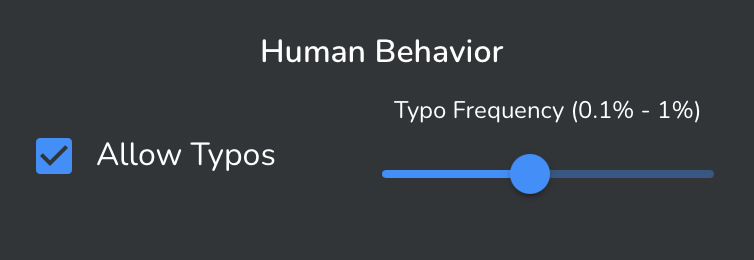
### Human Behavior Settings

**What It Does:**\
These settings determine how naturally human-like the comment is by introducing imperfections.

**Settings:**

* **Allow Typos:**\
  Enable this if you want the AI-generated comment to occasionally include typos for a more “human” feel.
* **Typo Frequency:**\
  Adjust the frequency of typos (from 0.1% to 1%). This controls how often typos might appear in the generated text.


# Profile Information

What It Does: This section is used to define the branding details that may be integrated into the generated tweet comment.

<figure><img src="/files/bfndsVt7VULMf3ibghYi" alt="" width="375"><figcaption></figcaption></figure>

**Settings:**

* **Hashtag:**\
  Enter your project’s hashtag (e.g., `#MyCrypto`). This will be included in the comment if restrictions do not block hashtags.
* **Cashtag:**\
  Specify your token’s cashtag (e.g., `$MYTOKEN`). Similar to the hashtag, it is used for branding unless restricted.
* **Project's X Handle:**\
  Input the project’s X (formerly Twitter) handle (e.g., `@YourProjectXHandle`). This adds another layer of brand identity to the output.


# Verbal Settings

What It Does: It does define the tone, humor and energy level of generated comments and also allows variation.

<figure><img src="/files/uNiOjjTb2fPt1yYSZcCv" alt="" width="375"><figcaption></figcaption></figure>

### Presets

**What They Do:**\
Presets allow you to quickly apply a set of predefined verbal characteristics. Choose one of the following:

* **Professional:**\
  Sets a more formal and reserved style.
* **Recommended:**\
  Balances tone, humor, and energy for a neutral, versatile output.
* **Meme:**\
  Applies a playful, humorous style suitable for meme-like content.

Selecting a preset will automatically adjust the tone, humor, energy, and variation settings to the recommended values for that style. Remember, selecting a more serious tone will most likely also result in less emojis being used as well.&#x20;

***

### Expert Mode Settings

**What It Does:**\
When you toggle **Expert Mode**, additional sliders become available for granular control over the following:

* **Tone:**\
  Adjusts the level of formality.
  * Very Formal
  * Formal
  * Neutral
  * Casual
  * Very Casual
* **Humor:**\
  Controls the seriousness versus the humor of the comment.
  * Serious
  * Slightly Serious
  * Balanced
  * Humorous
  * Meme-like
* **Energy:**\
  Sets the dynamism of the comment.
  * Calm
  * Moderate
  * Energetic
  * Lively
  * Dynamic

Each slider displays a descriptive label corresponding to its current value. This helps you understand the style that will be applied.

***

### Variation

**What It Does:**\
The **Variation** slider determines how much the tone, humor, and energy settings can deviate from their base (preset or chosen) values. It offers four levels:

* **None:** No variation; the values remain fixed.
* **Low:** Slight variation is allowed.
* **Medium:** A moderate range of variation is permitted.
* **High:** The greatest flexibility, allowing significant variation.

A visual indicator (a colored overlay on the slider) shows you the range of allowed deviation, ensuring that the generated output has controlled randomness.


# Length Range

What It Does: This slider lets you specify the desired length of the generated tweet comment in terms of word count.

<figure><img src="/files/MX7o0jnCo82Yfr1X8h90" alt="" width="375"><figcaption></figcaption></figure>

**Settings:**

* **Minimum & Maximum Words:**\
  Set the lower and upper bounds for the comment length (typically between 5 and 50 words).

Each generated comment will aim for a target word count randomly chosen within this specified range. Remember, usually some humans are more engaged than others, so having a big range makes comments look more natural.


# Do’s & Don’ts

What It Does: These checkboxes allow you to impose restrictions on certain elements within the tweet comment.

<figure><img src="/files/gs9ShShjlrMRTG78cH2s" alt="" width="375"><figcaption></figcaption></figure>

### **Settings:**

* **No Emojis:**\
  Disables the use of emojis in the generated text.
* **No Hashtags:**\
  Prevents hashtags from appearing in the comment.
* **No Cashtags:**\
  Stops cashtags from being included.
* **No X Handle:**\
  Prevents any X handles (mentions) from being used.
* **Randomize Do’s & Don’ts:**\
  If enabled, the system will randomize which restrictions are applied. So each comment is created with random Do´s and Don´ts set. This makes usage of Hashtags, Cashtags, X Handle and Emojis vary randomly and gives it an additional layer of human-like behavior. If disabled, you can manually set each of the above restrictions.

These settings help you maintain brand consistency and ensure that the output adheres to the desired content guidelines.


# Human Behavior

What It Does: These settings determine how naturally human-like the comment is by introducing imperfections.

<figure><img src="/files/l5uksuYevviiZSiW0nxn" alt="" width="375"><figcaption></figcaption></figure>

**Settings:**

* **Allow Typos:**\
  Enable this if you want the AI-generated comment to occasionally include typos for a more “human” feel.
* **Typo Frequency:**\
  Adjust the frequency of typos (from 0.1% to 1%). This controls how often typos might appear in the generated text.


# Use Finley AI

If Finley AI is activated for the Group you are raiding in, it will show just above the Smash It Button like shown below.

{% hint style="danger" %}
[ACTIVATE Finley AI](/raid-settings/ai-replies) in settings tab to be visible for your Raiders.\
You can deactivate it as well anytime without loosing your configuration.
{% endhint %}

<figure><img src="/files/Sa6Bfsh2gUiuuD4mS5lW" alt="" width="375"><figcaption><p>Finley AI is activated and shown in "Raids" Tab</p></figcaption></figure>

1. Click / Tap the red marked area to get a Comment suggestion from Finley

<figure><img src="/files/mi8FWdLvmdoF8w8EFSXX" alt="" width="375"><figcaption><p>Comment Suggestion</p></figcaption></figure>

2. Now 1-click copy the suggestion to use it in X by just clicking the icon next to the text suggestion.\
   It will acknowlegde your copy on top..

<figure><img src="/files/4IKBJiViCzha47hct9QW" alt="" width="375"><figcaption><p>Click to Copy Text</p></figcaption></figure>

3. Hit the Smash It Button and paste your copied text in your X comment.


# Boost

Boosted Raids: The Fastest Way to Get Your Project Seen on X

<figure><img src="/files/lZRV1AZfzgk8lpbAzT1y" alt=""><figcaption></figcaption></figure>

In Web3, attention is currency — and on X, it’s survival.

Whether you’re launching a new project, announcing a partnership, or pushing news, timing and visibility in crypto space are everything—and timing is absolutely critical. Most crypto services tie you down to strict agreements based on time or a set number of posts. \
\
**Boosted Raids** works differently: there’s no minimum usage, no fixed timeframe, and no binding commitments. Boosts are available instantly—whenever you need them—and you can hold onto them until the perfect moment.

That’s why we built **Boosted Raids** — a revolutionary way to drive real, targeted engagement from real users, in real time. No restrictions, no schedules, just powerful boosts exactly when you need them most.

{% hint style="info" %}
**Use** [**/boost**](/quick-commands-guide/boost) **command in your group to boost your current ongoing raid**

**Use** [**/credits**](/quick-commands-guide/credits) **command in your group to buy credits which can be used for boosts.**
{% endhint %}

***

## What are Boosted Raids?<br>

Boosted Raids are high-impact raids, that get your tweet in front of the most active and engaged accounts in the Web3 space — the SHARX Army.

This isn’t an engagement group.

It’s not bots.

It’s not noise.

**It’s a coordinated strike of verified, crypto-native raiders trained to amplify your message with: Likes, Retweets & Comments.**

Within minutes of Boosting a Raid, your post starts gaining traction — the kind of organic momentum that gets picked up by the algorithm and is seen across timelines.

***

## How It Works

{% hint style="success" %}
**Before using the Boost feature, please ensure that your** [**Profile Information**](/finley-ai/advanced/profile-information) **and** [**Verbal Settings**](/finley-ai/advanced/verbal-settings) **for** [**Finley AI**](/finley-ai) **are properly configured.**\
\
While Boost does not require [Finley AI](/finley-ai) to be active and used in your group, the settings you choose will directly influence the style, tone, and overall outcome of the Boost comments. As our Army does not know your project in detail, they´ll use AI to create comments based on your post content. So the more complex your content is, the better AI can react to it.

Verbal Settings let you customize how the SHARX Army comments your content—such as the tone, humor level, comment length, and the use of hashtags and cashtags. The more variation you set, the more human comments will look. Profile Information will make sure the army uses your Cash- and Hashtags etc.
{% endhint %}

1. **Start a Raid**\
   Launch your raid using the RaidSharksBot in your Telegram group.
2. **Get Credits (or use Trial)**\
   Buy [Credits](/credits) by using the [/credits](/quick-commands-guide/credits) command or make use of your free trial credit (1 is given to new groups).
3. **Enable Boost**\
   Use the [/boost ](/quick-commands-guide/boost)command to unlock the Boost button.
4. **SHARX Army Activates**\
   Your tweet is instantly pushed to our elite raiders — real accounts, real engagement.
5. **Earn Real Exposure**\
   Watch your post take off with high-impact likes, retweets, and comments.

***

## Why Use Boosted Raids?

1. **Get Seen By The Right People**\
   We don’t just broadcast your tweet — we push your raid directly to top-tier raiders.
2. **Go Viral, Fast**\
   Time-sensitive drops? Mints? Announcements?\
   Get instant engagement and visibility when it matters most.
3. **Cost-Effective Growth**\
   Unlike paid ads, Boosted Raids are targeted, authentic, and community-driven — giving you better ROI and more trust from the Web3 crowd.<br>

***

## How much is it?

A Boost currently comes for 0.5 Credits, which is equal to 10 USD. \
\
You can buy credits by utilizing the [/credits](/quick-commands-guide/credits) command from within your group.


# Trending

:point\_right: **RaidSharksBot Mini App:** [Open Mini App](tg://resolve?domain=RaidSharksBot\&startapp=_)

:point\_right: **Trending Channel:** [**https://t.me/RaidSharksTrending**](https://t.me/RaidSharksTrending)

<figure><img src="/files/HGr0nNAsEGzHNqKoZcrt" alt=""><figcaption></figcaption></figure>

## What is RaidSharksBot Trending?

**RaidSharksBot Trending** is a live platform designed to bring purely organic crypto project discovery to Telegram. It eliminates fake hype, bought followers, and pay-to-win leaderboards by ranking projects based on authentic engagement. While having a Telegram Trending Channel, there is much more to explore - **RaidSharksBot Trending brings valuable project and token information to possible investors and gives detailed insights through our partner** [**Spectre AI**](https://app.spectreai.io/rz/raidsharksbot)**.**

{% tabs %}
{% tab title="Trending" %}

<figure><img src="/files/dm4o4SqRav76H6YnYVsI" alt="" width="375"><figcaption></figcaption></figure>
{% endtab %}

{% tab title="Charts" %}

<figure><img src="/files/5vaYcRXh2bFkxBaL9raL" alt="" width="375"><figcaption></figcaption></figure>
{% endtab %}

{% tab title="DYOR" %}

<figure><img src="/files/XRj0vm6Mif85LkWB0yhL" alt=""><figcaption></figcaption></figure>
{% endtab %}
{% endtabs %}

***

## Main Features

RaidSharksBot Trending provides a fully organic way to discover crypto projects, offering the following benefits and insights:

* **Organic Rankings:**
  * Rankings based on **Group XP earned through real activity** with RaidSharksBot.
  * **No bots** or fake engagement—100% authentic.
* **Top Communities:**
  * **Top 20** most active and competitive groups are shown **in real-time within our mini app**
  * **Top 10** communities are furthermore shown within the Telegram Trending channel
* **Transparent Discovery:**
  * Small projects with strong communities can **outperform larger ones**.
  * Ensures a **cleaner, more transparent crypto space**.
* **Project Insights (powered by** [**@AI\_SPECTRE**](https://t.me/AI_SPECTRE)**):**
  * **Overview:** Project description & tags
  * **Market Data:** Token price, market cap, and trading volume
  * **Live Charts:** Real-time visualization of price trends
  * **SpectreAI Deep Dive:**
    * X Bubble Map
    * X post analysis & sentiment
    * Current happenings
    * Roadmap & additional insights
* **User Convenience:**
  * Discover projects **without leaving Telegram**.
  * Quick, one-tap access to all relevant project information in the Mini App.
* **Competitive Edge:**
  * Helps users identify **high-potential communities** early.
  * Small projects can **compete with bigger ones**.

***

## Access & Getting Started

:point\_right: **Telegram Trending Channel:** <https://t.me/RaidSharksTrending>

:point\_right: **RaidSharksBot Mini App:** [Open Mini App](tg://resolve?domain=RaidSharksBot\&startapp=_)

***


# Credits

## What are Credits used for?

Credits serve as the in-app currency for RaidSharksBot or any other White Labeled Bot powered by RaidSharks. Use them to pay for services across the ecosystem.\
(1 Credit = 20 USD)\
\
Currently admins can use them for:\
\
\- [Boosts](/boost) (**One Boost** costs **0.5 Credit each**, so **1 Credit** will get you 2 **Boosts)**\
\- [Customization](/customization/customize-for-group) (See pricing [here](/customization/customize-for-group#pricing-fits-every-budget))

For more details on each feature and how to use them, please follow the links above.

***

## How to buy Credits?

1. Install RaidSharksbot by following the [quickquide](/quickguide).
2. Type[ /credits](/quick-commands-guide/credits) within the group you installed it in (Make sure you are admin and not anonymus)
3. Follow the wizard to either buy single credits or discounted bulk packages

***

## How to donate Credits for a project you support?

1. Check what bot is used by the project (RaidSharksBot or any White Labeled Bot)
2. DM that particular Bot the command [/credits](/quick-commands-guide/credits) and follow the Wizard to buy <mark style="color:green;">User</mark> credits. Those cannot be used directly but you can send them to any group using that particular bot.
3. After purchase, Use the "Donate Credits to Group" Button within the Wizard
4. Select Group and choose amount to be send.

\ <br>


# Airdrops

<figure><img src="/files/8e0y4IEQEQ29Dvh4nQqM" alt=""><figcaption></figcaption></figure>

## What are Airdrops / Competitions?

[RaidSharksBot](https://t.me/raidsharksbot?startgroup=_) is a powerful Telegram X Raid Bot, that allows projects to airdrop their own crypto tokens or native currencies on most EVM compatible chains as reward for participation in Twitter (X) raids. Competitions are special X raid challenges which can be set up in RaidSharksBot. They run for a certain time or until a certain goal is met and they include all raids made during that particular set timeframe. The Bot will build an own leaderboard solely for this competition. Community members can participate in raids, gain points and climb the leaderboard to finally be <mark style="color:purple;">**airdropped**</mark> by the bot for their support - fully automated. That also includes wallet creation (for Users and Communities) by a simple Email OTP - processed via our Partner [Flooz.xyz](https://flooz.xyz) - All without ever leaving Telegram! So you do not need to connect your own wallet at any point. RaidSharksBot offers various competition modes, allowing projects to airdrop own crypto tokens or natives to reward participants.

Group owners and admins have the flexibility to customize these competitions by selecting different modes and criteria to suit their specific needs.

## How does it work?

It´s as easy as it gets. Basically we only need two things...

1. A group Admin or Owner who uses RaidSharksBot and is willing to reward raiders. They can set up a [<mark style="color:purple;">Community Wallet</mark> ](/airdrops/community-setup)in RaidSharksBot by following this [guide](/airdrops/community-setup). This wallet will serve as a wallet bound to that specific group. Most EVM compatible token can be airdropped. Projects can manually send compatible EVM tokens into that wallet and use them to create Airdrop competitions.
2. Users who participate in a competition. Those Users will be guided to set up a [<mark style="color:green;">Private Wallet</mark>](/airdrops/user-setup) just before first airdrop receipt. Once they have [set up their private wallet](/airdrops/user-setup), these users will automatically receive whatever token is airdropped by any future competition. Private wallets will be able to receive all rewards in all groups users participated in. So users only need to set the wallet up once and they are ready to be rewarded in all groups doing competitions with RaidSharksBot.

## What Tokens can be airdropped?

RaidSharksBot is able to airdrop any token (also your projects token) or natives on most EVM compatible Blockchains ([Please find a full List of compatible chains here](/airdrops/faq/for-admins-group-owners#what-blockchains-are-supported-for-airdrops)).\ <mark style="color:purple;">Solana support is in the works and will follow soon!</mark>\
\
There are some things you should know:\
As airdropping your raiders will cost fees, we highly recommend airdropping on a chain which has low gas fees. \
\
Usually, transactions on Binance Smart Chain or Base chain cost only a few cents. But Ethereum may become "expensive" to process airdrops.

{% hint style="danger" %} <mark style="color:red;">**Airdropping on ETH network may incur a lot of gas fees.**</mark>

<mark style="color:red;">**Consider airdropping on a cheaper chain instead, like BSC, Base or others.**</mark>\
\
In any case airdropping your raiders will cost gas fees, so your community wallet should always contain some native tokens to cover those gas fees. \
Otherwise transactions will fail.
{% endhint %}

## What problem does it solve?

The Competitions Feature by RaidSharks addresses the challenge of efficiently managing and rewarding large groups of participants in your ecosystem. By fully integrating into your platform, it automates the entire reward distribution process, including wallet setup, reward calculation, and airdrop execution.

Imagine you want to reward your top raiders weekly or daily with airdrops of your native token. While manually handling rewards for a small group of 10 users might be feasible, doing so for hundreds or thousands of users becomes impractical due to the significant time and effort required to manage wallets and execute transactions manually. The Competitions Feature streamlines this process, saving you time and ensuring accuracy at scale.

## How does that increase engagement?

Over the past year, we've observed a common trend in competitions: only a small number of participants receive rewards while the majority are left empty-handed. This happens because manual reward distribution is cumbersome and impractical, leading most projects to focus on rewarding just the top performers (e.g., the top 10) and maybe adding a few lucky draws to keep things somewhat fair.

The Competitions Feature changes this dynamic by enabling projects to distribute rewards to *all* participants based on their individual contributions. This ensures a more fair system where everyone, even those who can only participate minimally, receives a share of the rewards.

**Conclusion**

Isn't it better to have 200 satisfied participants than just 10 happy and 190 disappointed community members? That's exactly what the Competitions Feature helps you achieve! By making reward distribution fair, inclusive and easy, it significantly boosts engagement and satisfaction across your community.


# Quickguide

How to set up a Competition using RaidSharksBot

1. Install @RaidSharksbot (or your customized version) by following [this guide](/quickguide).\
   \- Skip this step if you are already using the bot -
2. [Read this](/airdrops) and make sure you understand the basic idea.
3. Create your community wallet and start your first competition.\
   [Check Video](/airdrops/community-setup) - It includes how to create a "Community Wallet", how to fill your wallet (manual transaction) and how to start a competition. More detailled information can be found in each of the different sections of this manual.
4. Double check that you got natives on your community wallet to cover gas fees. \
   (We cover all fees on Base chain)
5. Start [raiding](/how-to-raid).
6. [Process Airdrops](/airdrops/airdrops) to your raiders when the competition Ends.

{% hint style="info" %}
Any Issues? Please check [FAQ](/airdrops/faq) before reaching out to [support](/seeking-support).
{% endhint %}


# Community Setup

<mark style="color:purple;">This setup Guide is made for Group Owners and Admins only!</mark> If you are a normal User of the bot and you want to set up your Wallet to receive airdrops, please check [User Setup Section](/airdrops/user-setup).

1. Make sure you have [Installed @RaidSharksBo](https://t.me/raidsharksbot?startgroup=_)t succesfully and that it is working as it should. If you do not have it installed yet, please follow this [Guide](/quickguide).
2. The Video below will guide you through the community wallet creation process and also show you how to start your first competition. Creation of your Community Wallet is only needed once per group!&#x20;

{% embed url="<https://youtu.be/rb-yBuozx3E>" %}

Here is also a short step by step guide:

* Add [RaidSharksBot](https://t.me/raidsharksbot?startgroup=_) to your group
* Make it Admin (Leave all permissions as suggested)
* Use /raidsettings command in your group
* Click „Raid Settings“ Button (or any other button which opens up the Bot´s mini application)
* Navigate to „Airdrops“ Tab
* Click Create Competition
* Follow guide to create Community Wallet using Email (One time Password)
* Done - You can now create your first competition. Users will be able to set up their private wallets as soon as your first competition ends.

{% hint style="danger" %} <mark style="color:red;">Make sure to load up your wallet with native currencies (ETH on Base, BNB, Avax, Ada etc.) to cover gas fees for whatever chain you are airdropping on!</mark>\
\ <mark style="color:red;">Base -> ETH on Base</mark>\ <mark style="color:red;">BSC -> BNB</mark>\
\
\ <mark style="color:red;">If you can´t cover gas fees, your airdrop will fail!</mark>
{% endhint %}

{% hint style="warning" %}
Once set up, the community wallet can be controlled by all admins who have the Telegram permission to „Add new Admins“. So make sure that those admins are trained how to handle an ongoing competition.
{% endhint %}

{% hint style="info" %}
Please note that a Community Wallet is used to Airdrop your raiders. It is directly bound to the group you set it up in, so, if you have two groups, you need to create a Community Wallet in each of them.
{% endhint %}


# User Setup

<mark style="color:green;">This setup Guide is made for normal Users participating in raids.</mark> It will show how to set up a private wallet. If you are an admin or group owner, please check [Community Setup Section](/airdrops/community-setup).

1. Make sure you have participated in an ongoing competition and you are eligible for an airdrop. You have to click "Claim Airdrop" whenever a competition comes to an end to be guided through the one-time setup to create your private wallet.
2. The video below will guide you through the process of creating your private wallet.

{% embed url="<https://youtu.be/DA-iXDVPIyQ>" %}


# Airdrops

At the end of a competition, one final manual step is required. We’ve included this step to ensure that you retain full control until the very last decision. The bot will wait for your confirmation before initiating the token distribution.\ <mark style="color:green;">Until this last manual step, you can still abort the Airdrop if necessary.</mark>\
\
By using RaidSharksBot you can Airdrop hundreds of users in seconds:

{% embed url="<https://youtube.com/shorts/33AiH8avCQQ?si=3oI6j-qXQkWvpkn6>" fullWidth="false" %}
Distributing Rewards via Airdrop
{% endembed %}


# Competition Types

This section provides detailed information on the different competition modes and it gives you calculation examples.

It’s important to note that regardless of the competition mode you choose, the total amount of tokens distributed to your raiders will **never** exceed the limit you set.

You remain in control at all times, ensuring that the maximum amount of tokens airdropped is within your predefined limit.

{% content-ref url="/pages/DVfCKPNaf4ytLey8F7jR" %}
[Timed Trial](/airdrops/competition-types/timed-trial)
{% endcontent-ref %}

{% hint style="warning" %}
Please remember that you might still need natives to cover gas fees!\
\- [More information ](/airdrops#what-tokens-can-be-airdropped)-
{% endhint %}


# Timed Trial

## Token Distribution

In this mode, a fixed total number of tokens is distributed <mark style="color:green;">proportionally or progressive</mark> among all participants who meet a point threshold within a specified timeframe. The amount of tokens each participant receives is based on the ratio of their points to the total points earned by all eligible participants and also on the way the calculation is made (Progressive or Proportional mode)

#### How It Works:

1. **Define the Total Tokens to Airdrop**: \
   You set a total number of tokens to distribute (e.g. 1000 tokens) over a given period.
2. **Set the Point Threshold**: \
   Only participants who earn points above a certain threshold are eligible to receive airdrops. If a participant’s points are below this threshold, they are not included in the distribution.
3. **Choose Proportional or Progressive Token Distribution Calculation**: \
   This setting will change the way the calculations are made. Turning it to ON will lead to a progressive distribution which gives top performers more "weight" and increases their rewards.\
   Turning this mode to OFF will lead to a propotional distribution according to the points they earned. We recommend this mode being turned ON, cause usually you want top performers to be paid higher.

{% hint style="info" %}
This mode of distribution spreads tokens among all participants who meet a set point threshold within a defined timespan. \
\
**Proportional distribution** - will lead to a small difference in rewards between top performers and lower ranks.\
\
**Progressive Distribution** - Will lead to a more significant difference in reward amounts between top and low ranks.
{% endhint %}


# Token Trial

Coming soon!

## Token Distribution Based on Points Earned

In this distribution mode, a fixed total number of tokens is allocated to participants based on their earned points. The competition continues until all tokens are fully distributed, with no set end date.

#### How It Works:

1. **Define Total Tokens to Distribute**: You set the total number of tokens available for distribution (e.g. 1000 tokens).
2. **Set a Point Threshold**: Only participants who meet or exceed this point threshold are eligible to receive tokens. If a participant’s points are below this threshold, they are not rewarded.
3. **Tokens Per Point**: You determine how many tokens each point is worth. For example, if the value is **5 tokens per point**, then each point a participant earns is multiplied by **5** to calculate their token reward.
4. **Distribute Tokens Based on Points Earned**: Tokens are distributed to eligible participants based on the points they earn following this calculation:

   * For every point earned by a participant above the threshold, multiply by the token value.
   * The bot continues distributing tokens until the entire pool of tokens is exhausted.

   **Example:**

   * **Point Threshold**: 10 points
   * **Tokens Per Point**: 5 tokens
   * **Total Tokens Available**: 1000 tokens

   | Raider   | Points Earned | Tokens Earned Calculation          | Tokens Earned |
   | -------- | ------------- | ---------------------------------- | ------------- |
   | Raider 1 | 60            | (60 points) × (5 tokens per point) | 300 tokens    |
   | Raider 2 | 50            | (50 points) × (5 tokens per point) | 250 tokens    |
   | Raider 3 | 40            | (40 points) × (5 tokens per point) | 200 tokens    |
   | Raider 4 | 20            | (20 points) × (5 tokens per point) | 100 tokens    |
   | Raider 5 | 5             | Below threshold (no tokens earned) | 0 tokens      |

   * The total distributed tokens so far: **850 tokens**.
   * If there are remaining tokens (in this case, **150 tokens**), the competition continues, and more participants or additional points earned will use up the remaining tokens.
5. **Competition Runs Until Tokens Are Exhausted**: The competition continues until all tokens in the pool are distributed. As soon as participants earn enough points to claim the remaining tokens, the pool is fully exhausted, and the distribution is complete.

#### Adjustable Parameters:

* **Total Token Pool**: The total tokens available for distribution.
* **Point Threshold**: The minimum number of points required to receive tokens.
* **Tokens Per Point**: The number of tokens each point is worth.

This mode provides an ongoing incentive for participants to earn more points and reach the threshold to claim their share of tokens until all tokens are completely distributed.


# Raid Champions

Coming soon!

## Token Distribution by Grouped Ranks

This mode distributes tokens by categorizing winners into grouped ranks where each rank covers a range of places. You can configure both the number of ranks and the number of places each rank covers. This ensures that multiple participants share the same reward based on the range they fall into.

#### How It Works:

1. **Define Number of Winning Ranks**: You choose how many total ranks you want to distribute tokens to (e.g. 3 ranks).
2. **Set the Number of Places per Rank**: Each rank covers a range of places. For example:
   * **Rank 1** might cover places **1 to 10**.
   * **Rank 2** might cover places **11 to 20**.
   * **Rank 3** might cover places **21 to 30**.
3. **Token Allocation per Rank**: Each rank is assigned a fixed number of tokens that all participants within that rank receive. The higher the rank, the more tokens awarded.\
   Example:
   * **Rank 1**: All participants from places 1 to 10 receive **100 tokens** each.
   * **Rank 2**: All participants from places 11 to 20 receive **50 tokens** each.
   * **Rank 3**: All participants from places 21 to 30 receive **30 tokens** each.
   * And so on, with the number of tokens decreasing based on rank.
4. **Adjustable Parameters**:
   * **Number of Ranks**: Defines how many ranks will receive tokens.
   * **Range of Places per Rank**: The number of places each rank covers.
   * **Token Amount per Rank**: The token amount allocated to each rank which can decrease by a fixed value or factor per subsequent rank.
5. **Automatic Distribution**: The bot calculates which participants fall into each rank based on their place and distributes the respective token amount to all participants within that range.

This grouped-rank distribution system provides a way to reward multiple winners based on their overall standing. You can control how many participants get rewarded and by how much based on their grouping in the ranks.

{% hint style="info" %}
In this mode, your total amount of tokens distributed may be lower than expected or set. This is the case when some ranks are not taken by your raiders. However, it will never exceed the total amount of tokens defined in settings.
{% endhint %}


# FAQ

This section answers frequently asked questions for competitions

{% content-ref url="/pages/3q8ZckAPZR170HNw1kts" %}
[For Admins / Group Owners](/airdrops/faq/for-admins-group-owners)
{% endcontent-ref %}

{% content-ref url="/pages/bbjMvOMmhz8OFlfbwOI2" %}
[For Users](/airdrops/faq/for-users)
{% endcontent-ref %}


# For Admins / Group Owners

This section covers the following questions:

* [What Blockchains are supported for Airdrops?](#what-blockchains-are-supported-for-airdrops)
* [People complain they did not receive an airdrop. What should I do?](#people-complain-they-did-not-receive-an-airdrop.-what-should-i-do)
* [How long can people claim pending aidrops?](#how-long-can-people-claim-pending-aidrops)
* [My Airdrops failed -  What did I do wrong and what to do now?](#my-airdrops-failed-what-did-i-do-wrong-and-what-to-do-now)
* [Is there a usage fee for this service?](#is-there-a-usage-fee-for-this-service)
* [Does a "Competition" always include only one raid?](#does-a-competition-always-include-only-one-raid)
* [I am not able to set up a community wallet](#i-am-not-able-to-set-up-a-community-wallet)
* [How can I fill up my community wallet?](#how-can-i-fill-up-my-community-wallet)
* [Does the 5% token deduction (usage fee) on airdrops apply only to the free version of the bot?](#does-the-5-token-deduction-usage-fee-on-airdrops-apply-only-to-the-free-version-of-the-bot)
* [Is the 5% deduction taken from the tokens in the community wallet, or is it deducted from the amount sent to the user?](#is-the-5-deduction-taken-from-the-tokens-in-the-community-wallet-or-is-it-deducted-from-the-amount-s)
* [Is any admin able to initiate an Airdrop?](#is-any-admin-able-to-initiate-an-airdrop)

***

## What Blockchains are supported for Airdrops?

* **Ethereum** - (ETH) - <mark style="color:red;">Warning! High gas fees</mark>
* **Binance Smart Chain** - (BSC)
* **Base Protocol** - (BASE)
* **Polygon** - (MATIC)
* **Avalanche** - (AVAX)
* **Arbitrum** - (ARB)
* **Optimism** - (OP)
* **Mantle** - (MNT)
* **Blast Protocol** - (BLAST)
* **Linea** - (LINEA)

{% hint style="info" %}
**Solana - (SOL) support is coming soon!**
{% endhint %}

***

## People complain they did not receive an airdrop. What should I do?

If they have been eligible for an airdrop and it was processed already, In 99.9% of all cases, they already received their airdrop without even noticing it. Most people are not educated enough to check and confirm receipt by using easy Blockchain explorers like <https://bscscan.com> for BSC. So it´s most probably a visual refresh issue. Flooz page and also their Iris Bot may need a few minutes to show or refresh this information. So best way to be 100% sure they got it, is to tell them to check on chain directly. Help them by referring to [User FAQ](/airdrops/faq/for-users) or pointing them directly to their own ["Airdrop History"](/airdrops/faq/airdrop-history) within RaidSharksBot. If the status of the particular airdrop is "Completed" they do not have to worry at all - They received it. Furthermore they can copy their wallet address within the Airdrop history and just check onchain.

## How long can people claim pending aidrops?

If the status of an airdrop shows "Wallet Creation Pending" the User is eligible for and airdrop but he did not set up a Flooz private wallet yet. As soon as he does, he can claim the pending airdrop. The airdrop will be there to be claimed for 7 days. If people don´t claim their airdrops in that timespan, the token remain in your community wallet and the pending airdrop is canceled.\
We suggest to have some spare tokens sitting in your community wallet, in case there are people who have their airdrops still pending.&#x20;

***

## My Airdrops failed -  What did I do wrong and what to do now?

Most probably you do not have native currencies in your Community Wallet to cover gas fees.\
You will need gas fees for whatever chain you are trying to airdrop on.\
So in example...\
\
You want to airdrop your own token which is operating on Base Chain. In that case you would need a small amount of ETH (on Base) on your wallet to cover gas fees. If you are operating on Binance Smart chain you would need BNB (on BSC) to cover fees. And so on...\
\
Make sure you have enough native tokens in your community wallet at any time you process an airdrop to cover gas fees for whatever chain you are airdropping on. In case your airdrop failed you can just manually transfer native currency to your community wallet and retry the distribution - There will be a "retry" button within the "Distribute Airdrops" section in RaidSharksBot.

***

## Is there a usage fee for this service?

Yes, 5% - Airdrops sent to the user are deducted automatically by 5% - Projects do not need to cover those costs in addition, they are just deducted from the users who get the airdrops. Those 5% are used to cover costs, pay base gas fees and also gain revenue for the $SHARX and Flooz.xyz projects. Remember that on all chains, aside base, projects also need to cover gas fees in native tokens. So make sure you have some natives, of whatever chain you are operating on, in your community wallet.

***

## Does a "Competition" always include only one raid?

No - A competition is meant to be a defined timeframe that includes multiple raids. So whenever a competition is going on and a raid is started, that raid will automatically be a part of the ongoing competition. There is no limit of how many raids can be done during that competition - just limited by time.\
However, a competition could also only include one single raid, if projects just process only a single raid within the set timeframe. Make sure you set a reachable point threshold when creating your competition.

{% hint style="info" %}
As the normal "Raid" Button automatically turns into "Raid 2 Earn", you can easily identify a raid which is part of an ongoing competition.
{% endhint %}

***

## I am not able to set up a community wallet

Please make sure that you have not used the same email to set up a private Flooz wallet in the past. If so, please use a different email address.

***

## How can I fill up my community wallet?

The wallet you set up is an EVM compatible wallet and it supports multiple chains like (Base, ETH, BSC, Polygon, Avax etc.) You can just transfer your tokens manually to that wallet or use the "Fill Wallet" button within our Mini App to use Flooz services.

***

## Does the 5% token deduction (usage fee) on airdrops apply only to the free version of the bot?

No, the fee is always in place and we use it to cover costs and gain revenue for the $SHARX project itself. There is no difference between the free  and the paid version of RaidSharksBot in that regards.

***

## Is the 5% deduction taken from the tokens in the community wallet, or is it deducted from the amount sent to the user?

It is deducted from the amount sent to the user and it only occurs when the airdrop is initiated. You can cancel your airdrop anytime before processing it - No airdrop, no fee. So you do not have to care about it in any way. As soon as the airdrop is processed, the airdrop itself will be reduced automatically by 5%.

## Is any admin able to initiate an Airdrop?

No. The admin needs to have Telegram permission for "Add new admins" to be able to initiate an airdrop.


# For Users

This section covers the following questions:

* [Do I need to connect my own Wallet anytime?](#do-i-need-to-connect-my-own-wallet-anytime-1)
* [I am sure I should have received an airdrop, but how can I see it?](#i-am-sure-i-should-have-received-an-airdrop-but-how-can-i-see-it)
* [How can I check if I set up my private Wallet correctly?](#how-can-i-check-if-i-set-up-my-private-wallet-correctly)
* [I am sure that I set up my wallet correctly. Anything else I need to do?](#i-am-sure-that-i-set-up-my-wallet-correctly.-anything-else-i-need-to-do)
* [How long can I claim a pending airdrop?](#how-long-can-i-claim-a-pending-aidrop)
* [How can I check all competition details?](#how-can-i-check-all-competition-details)
* [How can I identify if there is a competition going on without opening the bot?](#how-can-i-identify-if-there-is-a-competition-going-on-without-opening-the-bot)
* [Do I get a notification whenever I receive an airdrop?](#do-i-get-a-notification-whenever-i-receive-an-airdrop)

***

## Do I need to connect my own Wallet anytime?

No - RaidSharksBot sets up a fresh virtual private wallet during first Airdrop claim. Follow [this process](/airdrops/user-setup). This wallet will be used solely for your reward airdrops and it works in all bots powered by RaidSharks and across all groups. So you don´t need to connect your own wallet with RaidSharksBot at any point.

***

## I am sure I should have received an airdrop, but how can I see it?

In any case you should use a Blockchain explorer to confirm receipt of an airdrop. Do not rely on any other third party tool. There are several Blockchain explorers for different chains you can use:\
\
Base - <https://basescan.com>\
BSC - <https://bscscan.com>\
AVAX - <https://avascan.info>\
Polygon - <https://polygonscan.com>\
Ethereum - <https://etherscan.com>\
\
Make sure you use the correct one - That depends on the chain, the airdropped token is operating on.\
\
Here is how you check receipt:

1. Copy your private Wallet address to clipboard by accessing your own ["Airdrop History"](/airdrops/faq/airdrop-history) within RaidSharksBot.
2. Open the correct Blockchain Explorer (e.g. <https://bscscan.com> for BSC) and paste your wallet address into the search console
3. Check balances and also transaction history - If you don´t know how, please do your own research.
4. If you can see your tokens there you got them - No matter what other apps or bots are showing.

***

## How can I check if I set up my private Wallet correctly?

Just open the mini app of RaidSharksBot or any customized version and click on your User Icon on top right. You see a section called "Airdrop History". Click that. If your wallet is shown there, everything is set up correctly. If not, please [follow this guide.](/airdrops/user-setup)

***

## I am sure that I set up my wallet correctly. Anything else I need to do?

No - You are set to receive whatever reward is paid across all groups and all bots powered by RaidSharks.

***

## How long can I claim a pending airdrop?

If the status of an airdrop shows "Wallet Creation Pending" you did not set up a Flooz private wallet yet. As soon as you do, you can claim the pending airdrop. The aidrop will be there to be claimed for 7 days. If you don´t claim your airdrop in that timespan, the pending airdrop is canceled.

***

## How can I check all competition details?

Open the bot and navigate to "Leaderboard" tab. Click on "View Details" - It will show all rules and competition settings.

***

## How can I identify if there is a competition going on without opening the bot?

The "Raid" button within the Raid message will change to "Raid 2 Earn" as soon as a competition is ongoing. So you can easily identify all raids counting towards an ongoing competition.

***

## Do I get a notification whenever I receive an airdrop?

No - We will rework this soon so you may get a notification in the future. However, as for now, you need to check your "Airdrop History" by opening the bot and click on your User Icon on top right. That will show a history of all airdrops received and it also tells you from which competition.

***


# Airdrop History

Users can check their Wallets and see their Airdrop history across all groups anytime.\
\
Just click on your User Icon on top right within the mini application.\
\
Then go to "Airdrop History"

{% tabs %}
{% tab title="User Menu" %}

<figure><img src="/files/yi5DE6Z1w7egRYjfdH0w" alt="" width="375"><figcaption><p>User Menu</p></figcaption></figure>
{% endtab %}

{% tab title="Airdrop History" %}

<figure><img src="/files/Z2jZNUqZRH5GFqOESIK4" alt="" width="375"><figcaption><p>Airdrop History</p></figcaption></figure>
{% endtab %}
{% endtabs %}


# How to Raid

This Guide will lead you through basic setup of the Bot. If you want the quick and dirty approach, check out Quickguide.

<table data-card-size="large" data-view="cards" data-full-width="false"><thead><tr><th></th><th data-hidden></th><th data-hidden></th><th data-hidden data-card-cover data-type="files"></th><th data-hidden data-card-target data-type="content-ref"></th></tr></thead><tbody><tr><td><strong>Need help?</strong> <strong>Join us on Telegram</strong></td><td></td><td></td><td><a href="/files/G5UzLvnTAV8FbZT5LBBG">/files/G5UzLvnTAV8FbZT5LBBG</a></td><td><a href="https://t.me/RaidSharksEntry">https://t.me/RaidSharksEntry</a></td></tr><tr><td><strong>Dive Deeper?</strong> <strong>Visit RaidSharksBot.com</strong></td><td></td><td></td><td><a href="/files/XLWV8MKC4pmTVKLWuGLD">/files/XLWV8MKC4pmTVKLWuGLD</a></td><td><a href="https://raidsharksbot.com">https://raidsharksbot.com</a></td></tr></tbody></table>


# Start Raid

If you are an admin and all set with the steps above, you can instantly start a raid by copying the URL from your Twitter post and pasting it after the command: [**/raid**](/quick-commands-guide/raid)

{% hint style="info" %}
*After typing in the command `/raid` make sure you hit the spacebar and **then** paste your Twitter post URL.*
{% endhint %}

Example: **/raid** <https://x.com/RaidSharks/status/1856054688044503067>

Once the raid has started it is [<mark style="color:green;">ACTIVE</mark>](/how-to-raid/active-inactive-raids#active-raid-now) and will display an initial raid message on your screen, this gives the users from your group the ability to open the WebApp by clicking the "Raid" button on the bottom.

<figure><img src="/files/q6D5FDY45vRcEXxxkxtS" alt="" width="349"><figcaption><p>Initial Raid Message / Appearance may vary</p></figcaption></figure>

{% hint style="info" %}
New users who are not verified yet will also see the "Onboarding" screen and will be guided trough the [verification steps ](/setup-guide/verification-admins)above.
{% endhint %}

{% hint style="danger" %}
Ongoing Raids can be resumed manually anytime by using [/resume ](/quick-commands-guide/resume)command.\
For more Information how a Raid is ended and becomes [<mark style="color:red;">INACTIVE</mark>](/how-to-raid/active-inactive-raids#inactive-raid-finished), proceed with ["End your Raid"](/how-to-raid/end-your-raid)
{% endhint %}


# Active / Inactive Raids

The Bot is designed to raid one tweet after the other and build a leaderboard for those people, who interact with an <mark style="color:green;">ACTIVE</mark> raid during the time it is ongoing.\
\
A raid is [<mark style="color:green;">ACTIVE</mark>](#active-raid-now) as soon as an admin launches it and it will be within this stage until one of the three criterias within the ["End your Raid"](/how-to-raid/end-your-raid) section is met. As soon as it is ended, it will become [<mark style="color:red;">INACTIVE</mark>](#inactive-raid-finished).\
\
You can spot the status of a raid within it´s Telegram raid message or the "Raid Summary" tab.

***

## <mark style="color:green;">ACTIVE</mark> - 🔥RAID NOW🔥

This raid is ongoing and people who interact with this raid will gain points for their interactions according to the ["Point Distribution"](/leaderboard/point-distribution) system.\
\
Active Raids will generate Live Notifications (If those are turned ON in [settings](/raid-settings/live-stats-notifications)) for User Interaction within the Telegram chat. Those are always prompted in the source group of a raid even when the raid was [forwarded ](/raid-forward)to another chat.

<figure><img src="/files/9KnIdhvyWtNSQuQpyd4P" alt="" width="358"><figcaption><p>Active and ongoing Raid</p></figcaption></figure>

As long as it is ongoing, the ["Raid Summary"](/how-to-raid/raid-summary) tab withing the WebApp will show a note, that the summary is not available yet. "Raid in Progress..."

<figure><img src="/files/OO5NHwM0RQ2mRxL1I2DA" alt="" width="372"><figcaption><p>Summary is still being built</p></figcaption></figure>

***

## <mark style="color:red;">INACTIVE</mark> - 🟢RAID FINISHED🟢

A raid in this status is still fully functional and people can still interact with the tweet and watch the leaderboard etc. The only difference is, that it already did the ["Raid Summary"](/how-to-raid/raid-summary) and distributed points to the users. As soon as this is done, the bot immediately stops giving more points to users.

As soon as a raid becomes inactive, this raid will stop prompting [Live Notifications](/how-to-raid/live-notifications) within the Telegram chat.

<figure><img src="/files/bFRjrBKEzKJQUiW3ijkz" alt="" width="358"><figcaption><p>Inactive Raid which was finished or manually ended</p></figcaption></figure>

Approximately one minute after a raid was finished and became inactive, it will show data within the "Raid Summary" tab. This is a indicator that all points have been distributed and no more points can be gained. Also it will post a ["Summary"](/how-to-raid/raid-summary) within Telegram.

<figure><img src="/files/YfTlw33yReS1ke9dv7ou" alt="" width="375"><figcaption><p>Raid Summary is ready - Points are distributed!</p></figcaption></figure>


# Live Notifications

As soon as a Raid is started and its status is [<mark style="color:green;">ACTIVE</mark>](/how-to-raid/active-inactive-raids#active-raid-now) a user who generates a ["Smash"](/raid-settings/main-target-smashes) by opening the tweet through the bot, will trigger a Live Notification (if turned ON in [settings](/raid-settings/live-stats-notifications)):

<figure><img src="/files/gkWcLUZQfQwtDEh4Gzta" alt="" width="375"><figcaption><p>Live Stats Notification</p></figcaption></figure>

This notification will include the following information:

* Direct link to the ongoing raid
* Telegram username of interacting user
* counter for targets \
  (achieved / target)

Live Raid stats can be toggled ON or OFF. This setting can be changed on the fly and affects and ongoing raid immediately. Check ["Live Stats Notification"](/raid-settings/live-stats-notifications) in Raid Settings for more information.

{% hint style="warning" %}
Please note, that the bot automatically deletes a Live Notification a few seconds after a new notification was generated and dropped. If there are many interactions simultanuesly it combines those interactions in one message.\
\
So, if people do not see their "Smash" Interaction message being displayed by the bot, they might have been too slow with hopping back from X to your chat to see it before the bot deleted it.
{% endhint %}


# End your Raid

There are 3 ways to end an ongoing raid and change its status from [<mark style="color:green;">ACTIVE</mark>](/how-to-raid/active-inactive-raids#active-raid-now) to [<mark style="color:red;">INACTIVE</mark>](/how-to-raid/active-inactive-raids#inactive-raid-finished)...

1. **Meet your Target**\
   Targets are defined in ["Smashes"](/raid-settings/main-target-smashes), which is redirecting the User to your tweet on Twitter (X). So the main target is to redirect as many users as possible to your tweet and make them interact with that tweet. As soon as your target is reached, the raid will automatically end and an end message will be shown.
2. **Start a new Raid**\
   If you decide to start a new raid while another raid is ongoing, it will end the previous one and starts a new one. Please note that people can still use the ended raid and interact with your tweet, but they won´t be able to gain points anymore. Also note, that this method will trigger a "silent" audit and won´t show a [Raid Summary](/how-to-raid/raid-summary) message.
3. **Resume an ongoing raid with** [**/resume**](/quick-commands-guide/resume) **command**\
   You can end any onoing raid manually by using [/resume](/quick-commands-guide/resume) command. This is becoming handy if you are not able to meet your [set target](/raid-settings/main-target-smashes) and you do not want to start another raid like stated in point 2. It will become even more important if you decide to use [Chat mute](/raid-settings/chat-mute) during an ongoing raid.

{% hint style="success" %}
All 3 methods will distribute points to users who interacted with your tweet until the moment the raid ends.
{% endhint %}

{% hint style="danger" %}
As soon as a raid has been ended through one of those methods above, people do NOT earn any more points. So the bot is designed to go for one raid after the other.
{% endhint %}


# Raid Summary

After a raid was ended through any method, the bot works out a summary of your current raid. That summary contains valuable data about user interactions and impact of your raid. It also gives you further information about [point distribution](/leaderboard#point-distribution) and fills up the [leaderboard](/leaderboard).

The raid summary is automatically triggered approx. 1 minute after the target of your raid is met.&#x20;

It will prompt a summary message within Telegram which contains basic data for point distribution.

<figure><img src="/files/EW89CHIDVakvQWESqRyp" alt=""><figcaption><p>Telegram Raid Summary</p></figcaption></figure>

It also contains two buttons "Full summary" and "Leaderboard" which will lead to the mini app giving you more detailed information, on how effective your raid was in regards of views "before" and "after" your raid. These views do also include external generated views.

<figure><img src="/files/YfTlw33yReS1ke9dv7ou" alt="" width="375"><figcaption><p>Graphical Raid Summary</p></figcaption></figure>

{% hint style="info" %}
Ending a raid by starting a new raid will trigger a silent audit and won´t show a raid summary within Telegram.
{% endhint %}

The summary is made to show how point distribution is done. It shows each single interaction and also gives an overview about how many smashes, likes, reposts and comments have been made and by which users.

<figure><img src="/files/sL6Qo9raER5CEBK9Ln6p" alt="" width="375"><figcaption><p>Point Distribution in Raid Summary</p></figcaption></figure>


# Leaderboard

RaidSharksBot has a fully integrated leaderboard. This section is made to understand the basic function of RaidSharksBot´s Leaderboard and what it is made for.

<figure><img src="/files/h7V9wHL9yrjQkFpUrMop" alt="" width="375"><figcaption><p>Leaderboard</p></figcaption></figure>

***

## 🎲 Why do I need points?

The main purpose of RaidSharksBot is to increase user´s engagement and give group owners and admins valuable information about their ongoing raids. By gamifying the raid people get engaged to participate.

That said, we need to measure how intensive a user participates in ongoing raids.

The way we do that is an integrated point distribution mechanism which gives people points for every interaction with an ongoing raid.

{% hint style="danger" %}
RaidSharksBot does NOT count interactions done by Shadow Banned Accounts. That´s done on purpose, cause those Users won´t positively affect the range of your tweet.
{% endhint %}

***

## 💪 What is the main purpose of having a leaderboard?

A leaderboard gives admins and group owners the possibility to gain information about who supports their project best.

{% hint style="success" %}
Raiding becomes very effective if you use the integrated Leaderboard to reward your best raiders.
{% endhint %}


# Leaderboard Tabs

The leaderboard is splitted into a few tabs which sorts data from the database to different timespans.

* All time&#x20;
* Month [<mark style="color:orange;">(1st Day of the Month 0:00 UTC - Last Day of the Month 23:59 UTC)</mark>](#user-content-fn-1)[^1]
* Week <mark style="color:orange;">(Monday 0:00 UTC - Sunday 23:59 UTC)</mark>
* Day <mark style="color:orange;">(0:00 UTC - 23:59 UTC)</mark>

{% hint style="warning" %}
Each tab is like a window to the database. So you cannot do a manual reset.\
I.e. the "Daily" tab containing raids of "today" will be empty "tomorrow". So best thing to do for a manual competition is to align it with those timeframes.\
\ <mark style="color:red;">Use our integrated</mark> [<mark style="color:blue;">Airdrop</mark>](/airdrops) <mark style="color:red;">mechanism to have a separated Competition Leaderboard. It will only show data within your set timeframe.</mark>
{% endhint %}

Admins can also access "previous" timespans. To do that, just click on the blue text "Current period" to change it to "Previous period". That will change all tabs below from Day to PAST Day, PAST week and so on.

{% hint style="info" %}
Previous periods are not available to normal users.
{% endhint %}

[^1]:


# Point Distribution

Users participating in <mark style="color:green;">ACTIVE</mark> raids can gain the following points. \
There are NO more points distributed as soon as a raid is [<mark style="color:red;">INACTIVE</mark>](/how-to-raid/active-inactive-raids#inactive-raid-finished).

🔨 Smash - 2 points\
🔁 Repost - 3 points\
💬 Comment - 4 points\
\
Those points shown above are fixed. They can´t be changed and are set to fit the Twitter algorithm best. While reposts and comments should not need any further clarification, it´s important to understand what a ["Smash"](/raid-settings/main-target-smashes) is.\
\
A "Smash" is generated as soon as a user hits the "Smash It" Button within the WebApp. This directs him to the raided tweet. This generates a view on the tweet and gains a user 2 points immediately.  Of course, these 2 points are only distributed on first view.\
\
The point distribution for a "Smash" is made immediately. However, that´s different to all other points. Those other points for Repost or Comment are distributed AFTER a raid comes to an end.\
\
As soon as a [raid ends](/how-to-raid/end-your-raid) (manually resumed, target met or a new raid was started) the bot does an audit of the raided tweet. It checks and analyzes all interactions done by each user and distributes points to users accordingly. It will trigger a [raid summary](/how-to-raid/raid-summary) which is explained in more detail within another section.\
\
To prevent spamming, the bot will only count one comment. So you won´t get additional points for multiple comments.

{% hint style="danger" %}
Points are only distributed for <mark style="color:green;">ACTIVE</mark> raids. So as soon as a [raid ends](/how-to-raid/end-your-raid), users cannot earn points anymore. People can still use the bot to be redirected to the tweet, but they won´t get points anymore.
{% endhint %}

{% hint style="warning" %}
Points for "Smashes" are distributed immediately!\
All other points are distributed AFTER the raid ends!
{% endhint %}

{% hint style="warning" %}
In the event of a tie in points, the RaidSharksBot Leaderboard will rank users based on account age, with the oldest verified account receiving the top position. It is up to individual projects to determine how to address ties in manual competitions.
{% endhint %}

***

## Shadow Ban Detection

RaidSharksBot is made to reward those people, who are pushing your project and are helping you to gain more exposure on Twitter (X). \
\ <mark style="color:red;">Therefore RaidSharksBot does not distribute any points for those interactions, which are made from Shadow Banned Twitter (X) Accounts!</mark> \
\
This is implemented on purpose, cause any interaction with Shadow banned accounts, could also cause other users to get shadow banned quick. The bot helps users to recognize a shadow ban quicker. Most people would not even know about a shadow ban without using RaidSharksBot, so it heavily increases efficiency of your raids and reduces the risk to get flagged by Twitter (X).

{% hint style="info" %}
Please note that a shadow ban is implemented by Twitter (X) and is unrelated to the usage of the bot. Shadow bans are solely a consequence of user behavior on Twitter (X). The bot merely redirects users to Twitter (X), where all subsequent interactions occur organically on the platform.\
\
So please check Twitter (X) terms and policies for further information how to prevent and remove shadow bans.
{% endhint %}


# Blacklisting Users

RaidSharksBot is capable to Blacklist users from being shown on the leaderboard.\
Please note, that it will just hide their information from the leaderboard. Those users can still participate in raids, help to meet a current target and sum up points in the database.\ <mark style="color:orange;">However, they are not able to win any competition or get an airdrop.</mark>

That said, you can anytime de-blacklist a user and he will pop up within the leaderboard again.

The Blacklist function includes a Username search to speed up search in big groups.

{% hint style="info" %}
All data is saved in the database. Blacklisting a user does not delete any points. It just hides that certain user within leaderboard and makes him unable to win a competition or get an airdrop.
{% endhint %}

<figure><img src="/files/7BtabSJJd9JuWBPgymmc" alt="" width="375"><figcaption><p>Blacklist users</p></figcaption></figure>


# Leaderboard Export (CSV)

RaidSharksBot contains an export function, which will provide you with all relevant data.\
It is accessible through the same menu as [Blacklist](/leaderboard/blacklisting-users) function described above.\
\
Leaderboard data will be provided in csv format. The export will only contain data according to the chosen [Leaderboard tab](/leaderboard/leaderboard-tabs) and it's timeframe (Current/Previous - All Time, Monthly, Weekly or Daily).\
\
The export contains the following data:

<figure><img src="/files/VeH7ST8O20WA9azHQ5pC" alt=""><figcaption><p>Leaderboard Export in csv format</p></figcaption></figure>

{% hint style="info" %}
RaidSharksBot does also include data about how many tweets have been provided by users AND have been raided. So you can reward people for providing good content. <mark style="color:orange;">If admins decide to</mark> [<mark style="color:red;">DISMISS</mark>](/raid-settings/finder-feature) <mark style="color:orange;">a Tweet proposal, RaidSharksBot will not count this - Only raided tweets are counted.</mark>
{% endhint %}

* Telegram username
* Twitter username
* Repost points
* Comment points
* Smashes points
* Provided Tweet count
* Total points


# Shadow Ban Protection

To safeguard your content and prevent getting shadow bans from X, we implemented a strategy where any tracking information is automatically removed by RaidSharksBot.\
\
Tracking data can flag accounts for potential spam when multiple users engage with the same link, potentially leading to shadowbans. By cutting off tracking parameters, we reduce the risk of being flagged by spam detection algorithms.

This method ensures that your efforts, including raiding campaigns, maintain visibility and avoid spam filters.


# Integrations

RaidSharksBot is more than a raid bot. It offers a great amount of partner services and functions around its ecosystem. \
\
These cherry picked services are designed to increase awareness of your project and turn visitors into holders, and holders into ambassadors.

<figure><img src="/files/SB9kRYN1EYePQNH9fXS7" alt=""><figcaption></figcaption></figure>


# Verified Links Page

RaidSharksBot has partnered with [Flooz](https://Flooz.xyz) to provide <mark style="color:green;">Verified Link pages</mark> out of the box for your token. They are designed to turn visitors into holders, and holders into ambassadors. <mark style="color:green;">Think of it like LinkTree, but for Web3 & Telegram</mark>.

It does also provide a direct swap and buy service. Users can buy on multiple chains and are also able to buy your token immediately via Credit Card, Apple Pay, Google Pay and many more services.

<figure><img src="/files/WJnAPqJBJHCg0zra4e1K" alt=""><figcaption><p>Verified Links Page - Powered by Flooz.xyz</p></figcaption></figure>

## Setting up your own Page

1. Access the "Integrations" Tab in [Settings UI](/raid-settings/access-settings-ui)

<figure><img src="/files/VGKbqtxxRIA8bkeffNw0" alt="" width="375"><figcaption><p>Integrations Settings</p></figcaption></figure>

2. Provide all information it asks for
3. Click on "Create Verified Links Page" Button to submit your data
4. Basic setup is done
5. Click on "Customize Verified Links Page" Button (shown after Basic Setup) if you want to add custom links or more details. (Advanced Setup)

{% hint style="warning" %}
To change the branding, add unlimited links or list your token, please add Iris as an Admin to your group and follow the instructions.
{% endhint %}

## Advanced Setup

You can add custom links and upload your own banner.

1. DM [@iris\_flooz\_xyz](https://t.me/iris_flooz_bot) on TG
2. Click "Start"
3. Follow steps in Video below

{% embed url="<https://www.youtube.com/watch?v=qEp1dtvVm04>" %}
Tutorial for Advanced Setup
{% endembed %}

## What does the final result look like?

(Examples after Advanced Setup through @iris\_flooz\_xyz Telegram Bot)\ <mark style="color:red;">Check Point 5 above!</mark>

{% tabs %}
{% tab title="Header" %}

<figure><img src="/files/5papAGrsWdGeI9n4lj53" alt="" width="375"><figcaption></figcaption></figure>
{% endtab %}

{% tab title="Custom Links" %}

<figure><img src="/files/n3PnazPuHNteSEai12ED" alt="" width="375"><figcaption></figcaption></figure>
{% endtab %}

{% tab title="Leaderboard" %}

<figure><img src="/files/wz3s55nIHFFJhtf0Atuc" alt="" width="375"><figcaption></figcaption></figure>
{% endtab %}

{% tab title="Buy /Swap" %}

<figure><img src="/files/AHZdE7BaC2uO1ueVuIC5" alt="" width="375"><figcaption></figcaption></figure>
{% endtab %}

{% tab title="Payment Options" %}

<figure><img src="/files/thLrAlSxJQ5O2PI9L8dZ" alt="" width="375"><figcaption></figcaption></figure>
{% endtab %}
{% endtabs %}


# Raid Settings

RaidSharksBot is very flexible and it has a lot of options to adjust the raiding experience to your groups needs.

{% hint style="info" %}
All settings can be adjusted within a graphical UI which usage is explained in this section.\
Settings are saved on group level, not on bot level. So even if you completely remove the bot and invite it again, your settings are always saved.\
\
In addition to the graphical settings menu, there are also text-based quick commands available. Check ["Quick Commands Guide"](/quick-commands-guide) section for more information.
{% endhint %}

<figure><img src="/files/NHFmsY7yP3VfK1VzZ2cN" alt=""><figcaption><p>Settings Tab</p></figcaption></figure>

We gonna go through each single setting shown in this tab and give you more details about each function.


# Access Settings UI

RaidSharksBot uses a unique graphical user interface which makes it very easy to set up. This section \
is made to explain how to bring up this settings menu. We will go through each single option within the next sections.

### Open Settings from Telegram

1. Use[ /raidsettings](/quick-commands-guide/raidsettings) command within the group you installed RaidSharksBot in.\
   It will prompt a message which shows your current targets and settings.

<figure><img src="/files/aQxUkJVsefK6zUds4LYt" alt="" width="375"><figcaption><p>/raidsettings prompt</p></figcaption></figure>

2. By clicking on "Adjust settings" it will open up the general settings page. There are four main sections. All are shown below.

{% tabs %}
{% tab title="Raid Settings" %}

<figure><img src="/files/vPflQlXvPXHX4KYyTZr4" alt="" width="375"><figcaption><p>Raid Settings</p></figcaption></figure>
{% endtab %}

{% tab title="Integrations" %}

<figure><img src="/files/IekRNeu7nAWEqhRZdGkO" alt="" width="375"><figcaption><p>Integrations Settings</p></figcaption></figure>
{% endtab %}

{% tab title="Finley AI" %}

<figure><img src="/files/vlK7UMxG9cE9RWgmKHAW" alt="" width="375"><figcaption></figcaption></figure>
{% endtab %}

{% tab title="Competitions" %}

<figure><img src="/files/kfdDeB5FiQnlY2fxkrkR" alt="" width="375"><figcaption></figcaption></figure>
{% endtab %}
{% endtabs %}

3. Please note, there are three different tabs. "Raid Settings" controls all settings for your raids.\
   [Integrations](/) Settings will contain data to use [Verified Links Pages](/integrations/verified-links-page) and [X Analysis](broken://pages/deYfKhjCIpmJ3g8qykmK). [Finley AI](#finley-ai) Tab will control and setup your AI Raid Companion. ["Competitions"](#competitions) will manage and create X Raid Competitions (raid2earn).
4. Adjust whatever setting you like. The Bot will save our input immediately or submit on click. It shows a short prompt within the WebApp when settings have been saved.

***

### Open Settings from within WebApp

The general settings UI can also be opened through the WebApp anytime by clicking the ⚙️ symbol on top right. It´s highlighted in blue within the picture above.

The settiings page is directly accessible from within all tabs and sub-tabs.

{% hint style="warning" %}
Most settings can´t be applied "On-The-Fly" to an ongoing raid.\
So please be adviced, that they will apply on NEXT raid.
{% endhint %}

{% hint style="danger" %}
The settings are shown to all Users. However, only admins can change them
{% endhint %}


# Main Target - Smashes

First of all, it´s important to understand the main target we are aiming for. \
The main target is "Smashes".\
A "Smash" is meant to be a redirect of a user to the tweet you are currently raiding. \
That said, our main target is to engage people to open your tweet, generate views and interact with it.

1. Bring up settings menu according to ["Access Settings UI"](/raid-settings/access-settings-ui).
2. You can now adjust your target as you desire. Your input will be saved immediately.

{% hint style="info" %}
You can not only click + and - but also enter any value within the target section.
{% endhint %}

{% hint style="warning" %}
Just installed the bot?\
Start with low targets and let people get used to it first. \
Targets are meant to be achieved. Setting them, too high can demotivate people.
{% endhint %}


# Refresh Count

The refresh count controls <mark style="color:green;">how often the bot will reprompt itself</mark> to not get lost within any ongoing communication in your telegram group. It is important to adjust it to your needs to make sure the bot does not spam too much but also reminds your users to participate in an ongoing raid regulary.\
\ <mark style="color:yellow;">In standard and on first install it is set to refresh count 10 which means the bot will reprompt itself every 10 messages.</mark>

1. Bring up settings menu according to ["Access Settings UI"](/raid-settings/access-settings-ui).
2. You can now adjust your refresh count as you desire (0 - 100). Your input will be saved immediately.

{% hint style="info" %}
Setting your refresh count to 0 will completely deactivate the bot repost. This can be quite handy if you want to pin an ongoing raid and leave the raid message at a certain place.
{% endhint %}


# Tags

Using Hashtags or Cashtags on Twitter (X) to improve visibility for your project is very important. It can get quite difficult to tell everyone, which tags you want to be used. RaidSharksBot helps with that.

1. Bring up settings menu according to ["Access Settings UI"](/raid-settings/access-settings-ui).
2. Set any Hashtag, Cashtag or even a full phrase you want people to use within their comments on Twitter (X).

Doing this will show your set tag as a blue clickable font within the "Raid" tab in our WebApp. Users can then copy it by a single click and paste it into a comment.

{% hint style="success" %}
This setting can be adjusted "On-The-Fly"
{% endhint %}


# Chat Mute

This option is made to focus your community solely on an ongoing raid. \
To prevent them being distracted by any ongoing conversation, It will mute the chat for normal users.\
They cannot write messages until your set target is met.

{% hint style="info" %}
Admins are still free to speak, so they can still help engaging people to join the raid.
{% endhint %}

* Bring up settings menu according to ["Access Settings UI"](/raid-settings/access-settings-ui).
* Turn mute ON or OFF using the toggle switch

This setting is always turned OFF on first install, so people are free to speak until you change this setting.

{% hint style="info" %}
While Chat is muted, the bot will display notifications that the "🔒Chat is LOCKED till target is reached 🔒" within the initial raid message. In addition is will display this information within [live notifications](/how-to-raid/live-notifications).
{% endhint %}

{% hint style="danger" %}
Use this setting with caution. The main purpose of RaidSharksBot is to engage, not to block.\
\
Using this mute function without making sure your target is met quickly and somebody is supervising the chat can end up in people feeling demotivated. Furthermore, new users are not able to ask questions if the chat is muted.
{% endhint %}


# Finder Feature

Activating this function will make the bot react to any Twitter (X) link which is thrown in your chat.\
\
As soon as the bot finds a link, it will prompt a message containing two buttons which are only available for admins.\
It lets you decide to <mark style="color:green;">"Raid"</mark> or to <mark style="color:red;">"Dismiss"</mark> a tweet with a single click of a button.

<figure><img src="/files/Vq1cFjy949FDUvpjyd3J" alt=""><figcaption><p>Finder message</p></figcaption></figure>

It also shows which Telegram user provided the tweet and the current set target.

{% hint style="info" %}
If admins decide to raid a provided tweet, RaidSharksBot will save this information to its internal database. \
\
This data will be available to admins through [csv export](/leaderboard/leaderboard-export-csv) of leaderboard data.\
\
You can use this data to reward people who provided good content which was raided.
{% endhint %}

1. Bring up settings menu according to ["Access Settings UI"](/raid-settings/access-settings-ui).
2. Turn Finder ON or OFF using the toggle switch

{% hint style="warning" %}
Finder reacts to all Twitter (X) links thrown into the chat. Your admins have to make sure that they check the quality of the tweet before raiding them.
{% endhint %}


# Live Stats Notifications

These notifications are made to give a live notification whenever a user is directed to your tweet by clicking "SMASH IT" within the WebApp.

<figure><img src="/files/gkWcLUZQfQwtDEh4Gzta" alt="" width="375"><figcaption><p>Live Stats Notification</p></figcaption></figure>

The notification contains the following data:

* Direct link to ongoing raid message
* Telegram username of interacting user
* Target counter\
  (Done / Target)

The bot will only keep the last live stats message and replaces them whenever a new one flies in. So it won´t spam the chat too much.

1. Bring up settings menu according to ["Access Settings UI"](/raid-settings/access-settings-ui).
2. Turn Live Stats ON or OFF using the toggle switch

{% hint style="info" %}
It is highly recommended to keep this option turned ON. Live notifications are very engaging and will make more people join your raids.
{% endhint %}


# Tweet Preview

This option will activate a short preview of the tweet within Telegram raid message.  It will not display the whole tweet but approx. the first 100 characters.

1. Bring up settings menu according to ["Access Settings UI"](/raid-settings/access-settings-ui).
2. Turn Tweet Preview ON or OFF using the toggle switch

<figure><img src="/files/q6D5FDY45vRcEXxxkxtS" alt="" width="349"><figcaption><p>Tweet Preview in Telegram</p></figcaption></figure>

{% hint style="info" %}
Adjust this setting to your needs. Think about the raid message becoming bigger and will use more space on your device.\
\
However it helps to remember which Tweet you have already raided without the need to open the WebApp again.
{% endhint %}


# Raid Duration

This option will display the duration of the raid within the raid end message.\
It needs the target to be met to show the total time a raid was ongoing.

<figure><img src="/files/dysjYTxzrhYHKc2kanvF" alt="" width="352"><figcaption><p>Timer showing raid duration within end message</p></figcaption></figure>

1. Bring up settings menu according to ["Access Settings UI"](/raid-settings/access-settings-ui).
2. Turn Raid Duration ON or OFF using the toggle switch


# Autopin

This Option activates the autopin setting. It will pin your raid automatically and will keep the raid pinned on repost. When the raid ends or is manually stopped it will automatically unpin your raid again.

<figure><img src="/files/Hww9L0APfu341luCfKYZ" alt=""><figcaption><p>Toggle Auto Pin Setting</p></figcaption></figure>

Pinning your raid gives you a nice blue Call to Action button within the pinned message.

<figure><img src="/files/H6xBucKV87TruOZRIj7c" alt=""><figcaption></figcaption></figure>

1. Bring up settings menu according to ["Access Settings UI"](/raid-settings/access-settings-ui).
2. Turn Auto Pin ON or OFF using the toggle switch


# Raid Summary

This toggle controls if the bot posts a Raid Summary message within the Telegram chat, once a Raid is finished. No matter if the option is ON or OFF, the bot will always do the audit and point distribution as usual and it will always contain the raid summary within the WebUI. Turning this option OFF just skips the message in Telegram. Check this section to learn more about [Raid Summary](/how-to-raid/raid-summary).&#x20;

1. Bring up settings menu according to ["Access Settings UI"](/raid-settings/access-settings-ui).
2. Turn Raid Summary ON or OFF using the toggle switch


# Verification-Only

### <mark style="color:green;">Mode Activated</mark>

This setting will prevent non-verified users from smashing your raids. They won´t be able to work towards the set Smash target at all. Non-verified Users trying to Smash, will be informed by pop-up banner that „Verification-Only Mode“ is activated by that specific group. The only way to participate and help you gaining your target is to verify their X Account.

<figure><img src="/files/xgc63s4Rqv5iH1IIA1jS" alt="" width="375"><figcaption><p>Notification for non-verified Users in "Verification-Only" mode</p></figcaption></figure>

***

### <mark style="color:red;">Mode Deactivated</mark>

This setting will also allow non-verified Users to participate in your raids. It makes the bot a lot more accessible. Users will be able to use the smash button without verification and their interaction will count against your main smash target. <mark style="color:red;">However, those non-verified Users will not get any additional points for their interactions on X,</mark> besides 2 points for the smash itself, which generates a view on the tweet. Non-verified Users will be regularly informed about the fact, that they have to verify, to claim their earned points.&#x20;

<figure><img src="/files/IUa4vqwV2sogzggM63Nq" alt="" width="375"><figcaption><p>Notification shown for non-verified Users</p></figcaption></figure>

\
Very useful is, that the bot saves all interactions during that 12-hours timespan - <mark style="color:green;">So whenever they verify later, they will still get their points from that last 12-hour timespan they have not been verified in.</mark> This simplifies the initial interaction with the bot, helping users acclimate while also enabling their active engagement. The bot will display the pop-up message below to inform users about this mechanism.

<figure><img src="/files/bAFPa9Ntc41TgCRT1bDW" alt="" width="375"><figcaption><p>Pop-up Message </p></figcaption></figure>

***

### General

Due to the fact that the bot does only provide a maximum of 2 points per raid to non-verified users, it's very unlikely that those people will be able to win any ongoing raiding competition. \
However, the bot will mark all verified Users with a blue check mark within the Leaderboard. \
So whenever a User is not verified, admins can identify him quick.<br>

<figure><img src="/files/AsFVz7Ld1RY1gm4d9UmU" alt="" width="359"><figcaption><p>Blue check mark for Verified Users</p></figcaption></figure>


# Forward Raids

This toggle determines whether the bot automatically forwards every raid you start to SHARX Private Groups. Turn it ON to receive support from the SHARX community, which will boost your tweet and help you reach your goal. Turn it OFF to keep your raid private within your own community.

1. Bring up settings menu according to ["Access Settings UI"](/raid-settings/access-settings-ui).
2. Turn Forward Raids ON or OFF using the toggle switch

{% hint style="info" %}
Please note, that people can still manually forward your raid to other groups or people.
{% endhint %}


# Display X URL

This toggle determines whether the bot displays the X URL within the Telegram Raid message.\
People using the link won´t get any points on the leaderboard and their interaction do not count toward your set target. However, it might be requested to have the link within the raid message for those who do not want to use a raid bot.

<figure><img src="/files/Xv71azwBYzNl8SAO1W6o" alt="" width="563"><figcaption><p>X link presented in Raid message</p></figcaption></figure>

1. Bring up settings menu according to ["Access Settings UI"](/raid-settings/access-settings-ui).
2. Turn Display X URL ON or OFF using the toggle switch

{% hint style="info" %}
Please note, that people using this link won´t get any points and their interaction does not count toward set targets.
{% endhint %}


# Quick Smash

This option will activate the "Quick SMASH" setting! When enabled, this feature streamlines the raiding process by bypassing the Mini-App, taking users directly to X for faster access. This feature is designed to reduce friction and speed up raids.

<figure><img src="/files/hI9kaVUeov9UttpDkzIs" alt=""><figcaption><p>Quick Smash Button</p></figcaption></figure>

{% hint style="info" %}
A link to open the Mini-App will still be available within the raid message. Designed to reduce friction and speed up raids. This setting will be turned ON by default for new groups.
{% endhint %}


# AI replies

This feature (Finley AI) will provide AI generated comment suggestions to your raiders. Those comment suggestions are created based on information you provide and information from the tweet you are currently raiding. Make sure you check [FinleyAI](/finley-ai) section for more details and how to add information about your project.

1. Bring up settings menu according to ["Access Settings UI"](https://docs.raidsharksbot.com/raid-settings/access-settings-ui).
2. Turn the toggle switch to ON to show FinleyAI to your raiders in "Raid" tab within the mini app.&#x20;

{% hint style="info" %}
Turn it to OFF to hide it - It will NOT delete your configuration.
{% endhint %}

<figure><img src="/files/YgPxqz9DS2JNjckhCRkL" alt="" width="375"><figcaption><p>Comment suggestion provided by FinleyAI</p></figcaption></figure>


# Channel Support

**RaidSharksBot** supports channels through its "[Forward](/raid-settings/forward-raids)" function. The raid can be set up and configured in a dedicated raiding group (set it up separately) and then forwarded to any target channel of your choice.

Unlike other bots that lose functionality when forwarding messages, **RaidSharksBot** remains fully functional within your channel.

Since channels do not follow the same conversation flow as groups, the raid message remains static and is not reposted. So it should be pinned by an admin to not get lost.


# Raid Forward

Raids can be forwarded to any group, channel or private DM. Just do a right mouse click or long tap on one of the raid messages and forward your raid to any group or contact.\
\
Users can then interact with your forwarded raid from wherever they are. There is no need for them to be within your group.\
\
This feature makes collaboration between projects and mutual support as simple as it gets.\
Furthermore, raids can be forwarded from a main group to language subgroups.

{% hint style="warning" %}
Please note, that all ["Live Stats Notifications"](/raid-settings/live-stats-notifications) will always be shown within the source group the raid was started in. No matter how often they are forwarded and from where people interact.\
\
Furthermore, people who interact with forwarded raids will also find themselves on your group leaderboard.
{% endhint %}

{% hint style="info" %}
RaidSharksBot includes an auto-forward feature that automatically shares your raid with RaidSharks Private Groups as soon as it’s posted. If you prefer not to forward your raids, you can easily adjust this in the [settings](/raid-settings/forward-raids). Simply disable the "Forward Raids" option.
{% endhint %}


# Quick Commands Guide

All settings are available through our innovative graphical settings UI.

However, we also have text-based quick commands for direct usage.

{% hint style="warning" %}
Please use all commands without naming the bot behind it.\
\ <mark style="color:green;">Correct: /settargets 10</mark>\ <mark style="color:red;">False: /settargets\@raidsharksbot 10</mark>
{% endhint %}

<table data-column-title-hidden data-view="cards" data-full-width="false"><thead><tr><th></th><th data-hidden></th><th data-hidden></th><th data-hidden data-card-target data-type="content-ref"></th></tr></thead><tbody><tr><td><p>📖 /start </p><p></p><p><strong>Show services (DM only)</strong></p></td><td></td><td></td><td><a href="/pages/Td0Lnse2kU6B1aoHbLYR">/pages/Td0Lnse2kU6B1aoHbLYR</a></td></tr><tr><td>🟢 /raid<br><br><strong>Starting a raid</strong></td><td></td><td></td><td><a href="/pages/iGIUdzgGvKdlOnfEZOmA">/pages/iGIUdzgGvKdlOnfEZOmA</a></td></tr><tr><td>🛑 /resume<br><br><strong>Stop Raid</strong></td><td></td><td></td><td><a href="/pages/SbhJoLOfbqEHwZKNCKGd">/pages/SbhJoLOfbqEHwZKNCKGd</a></td></tr><tr><td>🎯 /setargets<br><br><strong>Set your Target</strong></td><td></td><td></td><td><a href="/pages/Pjx8HL1b6igDHhYs3lmV">/pages/Pjx8HL1b6igDHhYs3lmV</a></td></tr><tr><td>⚙️ /raidsettings<br><br><strong>Open Raid Settings</strong></td><td></td><td></td><td><a href="/pages/S2SacNwD7OrzzUKF99iC">/pages/S2SacNwD7OrzzUKF99iC</a></td></tr><tr><td>📖 /menuraid<br><br><strong>Show Command Overview</strong></td><td></td><td></td><td><a href="/pages/DlvUFO2V4NowAPHIaxSi">/pages/DlvUFO2V4NowAPHIaxSi</a></td></tr><tr><td>📣 /ads<br><br><strong>Book Ads</strong></td><td></td><td></td><td><a href="/pages/i0mz0JnbNkN8EEbHwtqb">/pages/i0mz0JnbNkN8EEbHwtqb</a></td></tr><tr><td><span data-gb-custom-inline data-tag="emoji" data-code="1f3f7">🏷️</span> /settag<br><br><strong>Set your Hash-/Cashtags</strong></td><td></td><td></td><td><a href="/pages/w1UeG5VhdHVfaES8WFsU">/pages/w1UeG5VhdHVfaES8WFsU</a></td></tr><tr><td>🏆 /leaderboard<br><br><strong>Show Leaderboard</strong></td><td></td><td></td><td><a href="/pages/bf7HxqF3Nfv6jCYW5jpO">/pages/bf7HxqF3Nfv6jCYW5jpO</a></td></tr><tr><td>🧠 /ai<br><br>Go to FinleyAI settings</td><td></td><td></td><td><a href="/pages/JMataTShXSOWCOGnjol6">/pages/JMataTShXSOWCOGnjol6</a></td></tr><tr><td>/customize<br><br>Set custom GIFs or Videos</td><td></td><td></td><td></td></tr><tr><td></td><td></td><td></td><td></td></tr><tr><td>🚀 /boost<br><br>Boost your Raid</td><td></td><td></td><td><a href="/pages/N9rjmADcLHbtsezTax7W">/pages/N9rjmADcLHbtsezTax7W</a></td></tr><tr><td>💸 /credits<br><br>Buy Group Credits</td><td></td><td></td><td><a href="/pages/iTGS7HiBsMFieip2K8IA">/pages/iTGS7HiBsMFieip2K8IA</a></td></tr></tbody></table>


# /start

Send a direct message to the bot with command `/start` to find out more about  [customization](/customization) and [advertising](/advertising) services.

{% hint style="info" %}
This command is used in DM with the bot, not in a group!
{% endhint %}


# /customize

This command is meant to be used within a group. It will bring you to the Bots DM and start the Customization Wizard for your group. This let´s you customize the bot design to your groups needs.


# /menuraid

Use `/menuraid` to pull up a command overview of **RaidSharksBot**\
\
**RaidSharksBot** will prompt a similar message:

> Hello! I am a bot that makes it easier for teams and their communities to raid important tweets, and trend on Twitter!
>
> In a group chat, admins can use the following commands:
>
> [`/raid`](/quick-commands-guide/raid) `[tweet url]` to begin the raid session.
>
> eg: `/raid https://twitter.com/example1/status/xxxxxxx`
>
> [`/resume`](/quick-commands-guide/resume) to resume the chat.
>
> ...\
> ...
>
> ...

This shows an overview of the basic functions. Those are described on the following pages which are also linked above.


# /raidsettings

The `/raidsettings` command will show the actual settings by a Telegram prompt.

Furthermore, it provides a button to open up the [graphical settings UI](/raid-settings#general-information-settings-ui) within the WebApp


# /settargets

Only for group admins, default set to 5

Admins can use the `/settargets` command to quickly specify the amount of "Smashes" for the next group raids.

In case of [Chat Mute](/raid-settings#chat-mute) being active the chat will remain muted until **this** target threshold is met.&#x20;

```
/settargets 3
```

{% hint style="info" %}
Community members can still use a raid message anytime to interact with the tweet. Even after the raid is finished.
{% endhint %}

{% hint style="warning" %}
Some communities don´t want the chat to get muted. Check [Chat Mute](/raid-settings#chat-mute) setting.
{% endhint %}


# /raid

Only for group admins

To commence a raid session, admins should use the `/raid` command followed by the tweet URLs to be raided.&#x20;

#### Example: raid tweet

```
 /raid https://twitter.com/example1/status/xxxxxxx
```

{% hint style="info" %}
Community members can still interact with the tweet. Even after the raid is finished.
{% endhint %}


# /settag

Can be used to set desired Hash- or Cashtags. Those will be available for a 1-click copy within the Raid Tab.

Example: `/settag $SHARX`

To delete your Tag, just use `/settag` without anything behind.

This setting is also available within graphical UI. Check [Tags](/raid-settings#tags) setting within Raid Setting.


# /leaderboard

The command `/leaderboard` will prompt a message within Telegram to show top 3 users within the leaderboard for all time spans (All Time, Monthly, Weekly, Daily).

Furthermore, it provides a button to open up the [full leaderboard ](/leaderboard)within the WebApp.

{% hint style="warning" %}
If there is a [Competition](/airdrops) ongoing, this command will prompt the leaderboard of the current competition including a Button to it´s full leaderboard.
{% endhint %}

{% hint style="danger" %}
There is a rate limit for this command to prevent spamming
{% endhint %}

<figure><img src="/files/JAomTDacE7Nij1jVV8wP" alt="" width="375"><figcaption><p>Leaderboard Telegram prompt</p></figcaption></figure>


# /resume

In case you do not meet the set target count or the raid is going for too long, admins can resume an ongoing raid by using the `/resume` command.\
\
That will end the raid immediately and trigger the raid summary.&#x20;

In case the ["chat mute"](/raid-settings/chat-mute) function was active, the chat will unlock.


# /ads

The free version of RaidSharksBot contains advertising. You ad will be shown across all groups using the free version of RaidSharksBot.\
\
[**Advertise**](/advertising) with RaidSharksbot now!


# /ai

Use this command to jump straight to [FinleyAI settings](/finley-ai).

{% hint style="danger" %}
Make sure that you [ACTIVATE Finley AI in settings tab](/raid-settings/ai-replies) to be visible for your Raiders.\
You can deactivate it as well anytime without loosing your configuration.
{% endhint %}


# /boost

Use this command to make the bot add a BOOST Button to your raid.&#x20;

Clicking that BOOST button will activate the [Boost](/boost) function.&#x20;


# /credits

Use this command to open up the credit buy wizard. \
**There are two different ways to buy credits.**

1. Use /credits command in your Group to buy <mark style="color:purple;">Group Credits</mark>\
   \
   Group Credits are bound to a specific group and cannot be transferred.\
   One credit is worth 20 USD and they can be used for multiple services across @RaidSharksbot. \
   Admins can spent them for Group [Customization ](/customization)or[ Boosts](/boost). More services to come in the future.
2. Use /credits command in Bot DM to buy <mark style="color:green;">User Credits</mark>

   \
   User Credits can't be spent directly. They have one purpose - Donate them to communities you support. \
   Those credits can be bought or are earned within the ecosystem. Donate them to any group using RaidSharksBot or one of the White Labeled Versions powered by RaidSharks and help them grow. The bot will notify the group about a donation, so your support will be noticed.


# API Endpoint

An API endpoint has been introduced, allowing projects to trigger RaidSharksBot raids directly from their own Telegram Bots. This feature unlocks new possibilities for cross-integration and collaboration, bringing innovative use cases to the entire ecosystem.

The API data will be provided on request only and is part of a paid customized bot. Please DM [@Crypto\_Gunner](https://t.me/Crypto_Gunner) or [@Dante\_9circles](https://t.me/Dante_9circles) on Telegram for more information.


# $SHARX Token

The $SHARX token serves as the cornerstone of our ecosystem.

Boasting a total supply of 500 million units. Of this, 5% is held by the team, and an additional 9% was allocated for a presale event. The remaining 86% of the tokens are either accessible on Uniswap or in circulation among the public.&#x20;

Our smart contract is not renounced yet, but the liquidity securely locked until Nov 1, 2025, 11:00:00 AM. As this date approaches, we plan to extend the liquidity lock to ensure continued stability and security.&#x20;

Unlike many projects that depend on transaction taxes as their primary revenue source, our model is distinct. We have also implemented a 5% tax on both purchases and sales to manage fundamental expenses. **Nonetheless, our principal revenue will be generated through our main utility.**&#x20;

Our focus is on cultivating robust and self-sustaining revenue streams through our technological advancements, thereby eliminating reliance on artificial market activities. Consequently, our ecosystem is designed to prevent the typical pump-and- dump scenarios often observed in the crypto space.&#x20;

Upon establishing and stabilizing these revenue streams, we are committed to redistributing 50% of all earnings generated via the bot back to $SHARX token holders.

This redistribution will occur through mechanisms like an additional revenue share program, further enriching our community's investment value.

Visit <https://raidsharksbot.com/sharx.html> for detailed information

<table data-card-size="large" data-view="cards"><thead><tr><th></th><th data-hidden></th><th data-hidden></th><th data-hidden></th><th data-hidden data-card-target data-type="content-ref"></th></tr></thead><tbody><tr><td><strong>Joining the Community</strong></td><td></td><td></td><td></td><td><a href="/pages/HNW7bYgeAvr9uvWQWHPa">/pages/HNW7bYgeAvr9uvWQWHPa</a></td></tr><tr><td><strong>Seeking support</strong></td><td></td><td></td><td></td><td><a href="/pages/5nIZWjHPh7jU5x2JIdmQ">/pages/5nIZWjHPh7jU5x2JIdmQ</a></td></tr></tbody></table>


# Buy $SHARX

DYOR - $SHARX is a cryptocurrency Token on the Ethereum Blockchain. It comes with working utility, revenue streams and value for its holders.

The future is looking bright for $SHARX, as it solves a common problem in the space and its technology is far ahead of the competition.\
\
And the best thing is, that 50% of all revenue generated by the main Utility will be given back to $SHARX holders. Being early means you will be able to secure a big share of these revenues which are built as we speak.\
\
Make sure you join our community if you consider to buy. We are a very helpful and vibrant community.

## Main Links

Dextools: [0x64D3C2817A22b78CAcabe4baa2525065ebDF4012](https://www.dextools.io/app/en/token/sharkx?t=1726352461256)

Buy on Uniswap: <https://app.uniswap.org/swap?inputCurrency=ETH&outputCurrency=0x64D3C2817A22b78CAcabe4baa2525065ebDF4012>\
\
Buy on BroccoliSwap: <https://broccoliswap.com/?swap=0.1-ETH-to-SHARX-1>

Visit <https://raidsharksbot.com/sharx.html> for detailed information


# Revenue Share

{% hint style="warning" %}
Revenue Share is temporarily paused until further notice! Please follow our official channels for more information.
{% endhint %}

50% of all revenue generated by RaidSharksBot is shared with holders of [$SHARX](/usdsharx-token) Token via BNB Airdrop.\
\
It's completely free of charge, free of taxes or fees and without any holding restrictions beside a dust-wallet threshold of 1000 Tokens. Your token always remain under your control. The RaidSharksBot Team is excited to introduce our innovative revenue-sharing solution. By simply verifying ownership of your $SHARX token you become eligible for regular BNB airdrops.

Ethereum Network and Binance Smart Chain are both EVM compatible - That means they always share the exact same Wallet address. So while your $SHARX token is sitting on the Ethereum Blockchain, we always airdrop the same wallet address with BNB to safe gas fees.\
\
So, the rules are as easy as it gets... \
The bigger your holdings, the bigger your personal share of the revenue airdrop.\
\
Make sure to [buy $SHARX](/usdsharx-token/buy-usdsharx) token now and secure your share!

* No token lock
* No gas fees
* No transactions required
* Automatical aidrops in BNB


# How to Opt-In

1. Open Chrome Browser and go to [raidsharksbot.com/rev-share](https://app.raidsharksbot.com/revshare).\
   (Chrome Browser is highly recommended)
2. Click on „Connect Wallet“. \ <mark style="color:red;">Make sure you only use the link above and do not fall for any Scam Airdrops out there.</mark>
3. Read the disclaimer and make sure that you have „Eligible for Rev-Share“ ticked before you proceed.
4. Connect your Wallet via „Metamask“, „Wallet Connect“ or „Coinbase Wallet“. \
   (We will listen to your feedback, which connection method you want us to add later.)
5. Sign the Message using your wallet.
6. Done. You are now eligible for Rev Share. \
   Seeing a small icon on top right of the dashboard which says „Enrolled“ means that you are all set and your wallet will receive Rev-Share automatically at the end of the whole cycle. Make sure to understand ["Cycles" and "Periods"](/revenue-share/how-does-it-work). Also make yourself familiar with the ["Dashboard"](/revenue-share/dashboard).


# How does it work?

If you are a holder of [$SHARX ](/usdsharx-token)token, you are eligible to receive a share of the revenue. From a holder´s perspective, there is nothing more to do, than following the steps described in section ["How to Opt-In"](/revenue-share/how-does-it-work).\
\
However, we use this section to explain the basic rev-share mechanics to make it more transparent and understandable.&#x20;

To understand how the distribution works we need to explain what are ["Cycles"](#cycle) and ["Periods"](#period).

### Cycle

A Cycle is the whole revenue sharing process of ONE amount to be shared. The amount to share is chosen by the team based on the revenue generated during a specific timeframe.\
A Cycle lasts from the start of sharing this amount till BNB got airdropped to $SHARX holders.\
The duration of a Cycle is not a fixed timespan. It could be a month, a week or even a day if necessary.\
It will differ and is defined and adjusted by the team regulary for any total amount to be shared.

### Periods

A period is a very small timespan within the whole Cycle. These periods are used to regularly check $SHARX holdings. A complete "Cycle" is comprised of numerous short Periods... We gonna check holdings of opted in wallets through all of these periods during the whole cycle.

So that means, that we always calculate your personal share of all Opted-In Wallets for each of those small periods and sum it up accordingly. That said, it is clear, that once you sell your tokens (or transfer them to a different wallet) you won´t receive any rev-share anymore. However, what you got so far until this point is yours in any case. So you won´t loose your rev-share, which was made until the point you sell, but you won´t receive any additional from this point on, of course.

A Period is no fixed timeframe and it can be adjusted by the team. It will not be communicated in public to prevent malicious behaviour.

### Distribution

As soon as a cycle comes to an end, your share is automatically airdropped to your enrolled wallet. There is no action required from your side. You will see the transaction history within the [Dashboard](/revenue-share/dashboard)\
All airdrops are done using BNB on Binance Smart Chain. We chose this way to distribute revenue share casue Binance Smart Chain is compatible with Ethereum Virtual Machine (EVM) contracts and it shares the same Wallet adress like ETH. Furthermore, transactions fees for airdropping are much lower.


# Dashboard

This section is made to give you more details about our dashboard. We will go through all data fields and give you more details on them.

<figure><img src="/files/h4zJG6CXLDysXSTNQ5bL" alt=""><figcaption><p>Revenue Share Dashboard</p></figcaption></figure>

### 1 - Enrolled / Not Enrolled

The small icon on top right shows if your wallet is enrolled for rev-share or not. \
So make sure it says <mark style="color:green;">"Enrolled"</mark> to receive rev-share.

### 2 - Revenue Received

This data field will show how many BNB you already received (and was transfered) so far. It will sum up all revenue share you already earned and has be transferred to you during previous [Cycles](/revenue-share/how-does-it-work).\
There will be another value "Due current cycle value" which will display how much BNB you earned so far in the ongoing Cycle. This value is updated regulary.

### 3 - Your Share

This will display how many percentage of token you got from all Opted-In token during the ongoing [period](/revenue-share/how-does-it-work#periods). So this value will change on each period when additional people Opt-In or tokens are bought, transfered or sold. It´s your actual share of the revenue during the running period.

### 4 - Cycle History

This will show the amount which will currently be distributed during the ongoing cycle and it also shows the history of the last 10 distribution cycles.

### 5 - Sent Transactions

This will display all transactions (airdrops) done for the wallet you are connected with. It can be used to check history and make sure the airdrop was received. The transaction hash can also be used as a reference for further support.

### 6 - Cycle Progress

This displays the progress of the current cycle. Once it reaches 100% the distribution of BNB will be done and will be airdropped automatically.


# FAQ

### Are my tokens locked?

No. The tokens remain in your wallet anytime. So you are free to transfer or trade your token. Once you do, you won´t get any more rev-share. However, you always keep what you summed up until the point you transfer or sell your tokens.

### Is there a minimum amount I need to be eligable for rev-share?

Yes, but the amount is very small and only in place to prevent dust-wallets to be airdropped.\
Actually, the minimum amount needed is 1000 tokens. All other wallets are considered as dust wallets. This amount will be adjusted as price moves up.

### How can you Airdrop BNB without knowing my Binance Smart Chain Wallet address?

Ethereum Network and Binance Smart Chain are both EVM compatible - That means they always share the exact same Wallet address. So while your $SHARX token is sitting on the Ethereum Blockchain, we always airdrop the same wallet address with BNB to safe gas fees.

### Is there any fee I have to pay?

No. All you need to do is sign a message with your wallet. There is not approval or transaction needed. Rev-Share will be airdropped and fees are covered by us.

### How much revenue is distributed and when?

The only way to know is following official announcemnts. We want to share revenue with people who are really following the project. It will be announced through official channels (Telegram, X).

### Can I top up my holdings anytime?

Yes, you can. We calculate your share for each small period. So once we detect an increase of your holdings, your share gonna increase as well. So that means that increasing your holdings during an ongoing rev-cycle is absolutely legit and will increase your share for each period accordingly.

### Wallet Connect does not work. How can I fix that?

Make sure that you are using Chrome Browser. There are other browsers which might work, however we optimized it for chrome. For all other issues, please reach out for a team member. As always, make sure to not fall for any scam by interacting with random people messaging you.

### I have multiple Wallets - Can I enroll them all?

Sure. Just repeat the procedure described in ["How to Opt-In"](/revenue-share/how-to-opt-in) for all your wallets and make sure they are all enrolled.

### Does it save my "enrolled" status or will it Opt-out as soon as I disconnect?

It saves your "enrolled" status. You can disconnect your Wallet once you are enrolled. Just make sure you do NOT click "Opt-Out", but "Disconnect" when opening the menu by clicking on your Wallet adress on top right. Disconnect will keep your "enrolled" status. Opt-Out will end your participation in Rev-Share for that wallet.


# Warning

There are a lot of FAKE Groups asking you to connect your wallet to receive Airdrops. \
Please be careful and always double check that you are interacting with official links.

<mark style="color:red;">Please use well-known sources like</mark> [<mark style="color:blue;">Dextools</mark>](https://www.dextools.io/app/en/ether/pair-explorer/0x5712c9557d9158359b0005f6aad61e1763cc5cf0?t=1711963963610) <mark style="color:red;">or</mark> [<mark style="color:blue;">Coingecko</mark>](https://www.coingecko.com/en/coins/raidsharksbot) <mark style="color:red;">to be redirected to official channels. Ask admins or team members for help in case you are unsure.</mark>

[All Official Links](https://linktr.ee/raidsharksbot)<br>


# Joining the community

To become part of the RaidSharksBot community join our Telegram group:

{% embed url="<https://t.me/RaidSharksBotEntry>" %}

Also check out our [website](https://raidsharksbot.com) and follow us on [Twitter](https://twitter.com/RaidSharks) !

Connect with like-minded individuals interested in coordinated Twitter raids.

Consider to buy [$SHARX ](https://app.uniswap.org/swap?inputCurrency=ETH\&outputCurrency=0x81994dfbbe69c9e03226c2ebe62f7352dc3db812)token to become a part of the family and secure yourself a part of the revenue the bots creates in the future.


# Seeking support

For any assistance or support related to **RaidSharksBot** or raid sessions, visit the support group at <https://t.me/RaidSharksBotSupport> or join our [Official Telegram](https://t.me/RaidSharksEntry) group.\
\
Get help, share experiences, and troubleshoot any issues.


# Troubleshooting / FAQ

This sections tries to solve common problems and frequently asked questions.

The following questions will be answered here:

* [I liked, reposted and commented but only got 2 points](#i-liked-reposted-and-commented-but-only-got-2-points)
* [I cannot open the User Interface by clicking "Raid"](#i-cannot-open-the-user-interface-by-clicking-raid)
* [Clicking on "Raid" just brings me to the Bot´s DM](#clicking-on-raid-just-brings-me-to-the-bot-s-dm)
* [My Interactions are not recognized by the bot ](#my-interactions-are-not-recognized-by-the-bot)
* [The Bot does not react to my command](#the-bot-does-not-react-to-my-command)
* [I am getting an error message while trying to verify](#i-am-getting-an-error-message-while-trying-to-verify)
* [Can I customize the bot for my project?](#can-i-customize-the-bot-for-my-project)

***

## I liked, reposted and commented but only got 2 points

Check the ["Point Distribution"](/leaderboard/point-distribution) section to fully understand how the point distribution works and when it is done.

The points for your interactions are not distributed yet (Raid is still [<mark style="color:green;">ACTIVE</mark>](/how-to-raid/active-inactive-raids#active-raid-now))\
&#x20;or your Twitter (X) account is shadow banned.

<figure><img src="/files/JL9V8iHP3GoXQDH1BwhI" alt="" width="563"><figcaption><p>Ghost Ban / Shadow Ban Sheme</p></figcaption></figure>

***

There are 3 main reasons why you don’t get points:

1. You are shadow/ghost banned by twitter. So nobody who’s not following your account can see your interactions.
2. The raid was already finished when you started your interactions or it took too long to post your comment before the raid ended.
3. The raid is still running... Wait until it comes to an end.

***

## I cannot open the User Interface by clicking "Raid"

Make sure everything is up-to-date:

* check for OS updates
* check for Twitter (X) app updates
* check for Telegram updates
* Make sure you are not using <mark style="color:yellow;">Telegram X</mark> application
* Make sure your country is not Blocking the WebApp (Nigeria)

{% hint style="danger" %}
Telegram X is an alternative Telegram app with redesigned internal application architecture.&#x20;

RaidSharksBot does not support <mark style="color:yellow;">Telegram X</mark>.&#x20;
{% endhint %}

Some countries are blocking the WebApp.\
If you are located in the following countries the only solution is to use a VPN:

* Nigeria

***

## Clicking on "Raid" just brings me to the Bot´s DM

Make sure everything is up-to-date:

* check for OS updates
* check for Twitter (X) app updates
* check for Telegram updates

***

## My Interactions are not recognized by the bot&#x20;

In 99% this means, that you are acting with a Twitter (X) account which is shadow banned.\
As we can´t get into all the details in this guide, we refer to Twitter´s policies and terms. Please do your own research.\
\
The only working solution is to let your account cool off for a while. Shadow ban will automatically be removed by Twitter.

{% hint style="info" %}
How can I check if I'm shadow banned on X? &#x20;

There are several websites out there claiming to check your account for being shadow banned. <mark style="color:red;">Those don´t work!</mark>\
Only reliable method is to ask a user who <mark style="color:yellow;">does not follow</mark> you and <mark style="color:yellow;">does not interact with the same content</mark> like you, if he/she can see your interactions. If he can't, you might be shadow banned. Letting the account cool off for a while may help to remove the ban.
{% endhint %}

There are other things which could be a reason as well.&#x20;

Please also make sure that you....

1. ... are not raiding with a shadow banned X Account.
2. ... you checked the "Raid Summary" AFTER the raid is finished and the Raid status became [<mark style="color:red;">INACTIVE</mark>](/how-to-raid/active-inactive-raids#inactive-raid-finished). If the raid is still [<mark style="color:green;">ACTIVE</mark>](/how-to-raid/active-inactive-raids#active-raid-now) the [Point distribution](/leaderboard/point-distribution) was not done yet.
3. ... are interacting on X with the same X account you verified with. People using multiple accounts sometimes interact with the wrong Account without even noticing. Doing so will end up in the bot not seeing interactions from the X Account your Telegram Account is verified with.
4. ... have participated with the raid while it really was "[<mark style="color:green;">ACTIVE</mark>](/how-to-raid/active-inactive-raids#active-raid-now)<mark style="color:green;">"</mark>. You can only gain points while a raid is ongoing. As soon as its target is met, raid is ended manually or a new raid is started, the status of the raid becomes [<mark style="color:red;">INACTIVE</mark>](/how-to-raid/active-inactive-raids#inactive-raid-finished). In this status, users don´t get any points for interacting. You can still use the bot and interact on X, but no points are distributed.
5. ... are not [blacklisted](/leaderboard/blacklisting-users) by an admin. If you can see you are getting points on the ["Raid Summary"](/how-to-raid/raid-summary) but you cannot find yourself on the[ leaderboard](/leaderboard), please contact the admins of the group this raid was started in. You might have been blacklisted by an admin.
6. ... double check your privacy settings. Can you see a small lock next to your Twitter Username? If so, you have a privacy setting turned on. All users who do NOT follow you, can´t see your interactions. That includes the bot. Make sure the setting is OFF.

<figure><img src="/files/QdOBKLirK33DjtDxTR6G" alt=""><figcaption><p>Make sure this setting is turned OFF</p></figcaption></figure>

***

## The Bot does not react to my command

If that´s the case, please double check if you got admin permissions. Only admins can control the bot. They need minimum admin rights and no special permissions. \
\
Also make sure that the bot itself has all the permissions like shown on the picture below:

<figure><img src="/files/kB5Juww6UIC83dfSeRe5" alt="" width="300"><figcaption><p>Admin Permissions</p></figcaption></figure>

{% hint style="info" %}
The bot does not need all of those permissions. However, admin permissions in Telegram are a bit special. So we noticed a few groups having issues when the bot had less permissions. So this is a "fail safe" setting for all groups!\
\
That said, you can also try to reduce permissions from there and just see how it does for your group. We cannot cover all the details in here on that topic. But the bot may work in your group as well with less permissions.
{% endhint %}

***

## I am getting an error message while trying to verify

Usually this occurs if the bot is not able to send you a verification link.&#x20;

This can occur when...

* you entered your Twitter username wrong. \ <mark style="color:orange;">Make sure you use the one beginning with @ and also respect capital and non-capital letters.</mark>
* the bot is not able to send you a direct message on Twitter (X) cause of privacy setting.\
  Check your twitter settings if accounts which do not follow you are allowed to DM.

***

## Can I customize the bot for my project?

Yes you can fully customize it. However, this is a paid premium function. \
You can find more infos on that topic in the ["White Label"](/customization) Section.


---

[Next Page](/llms-full.txt/1)